
Get the Android 12 Look on Any Android Phone for Free
Give any Android phone the Android 12 Material You look for free with Lawnchair, themed icons, a Google wallpaper and widgets, and undo it any time.
 Mohammad Shojib AhmedUpdated · 7 min read · 338 views
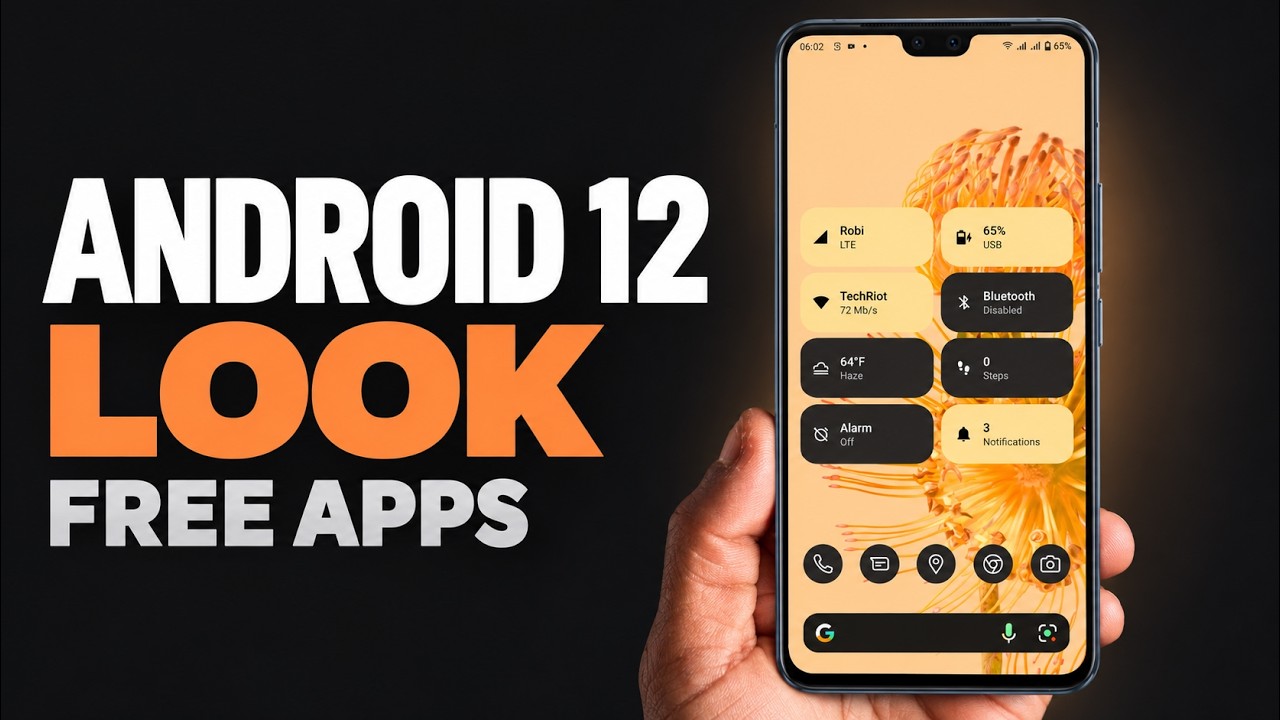 9:47 video
Key takeaway
Install Lawnchair, set it as your default home app, turn on themed icons and wallpaper accent colors, then add the free widgets.
I turned a Vivo V23 running Funtouch OS into a clean Android 12 look-alike without paying for anything. The same idea works on most Android phones, because you are only changing the home screen, not the system. Menus and default-app settings differ between brands, and I only tested it on the Vivo.
Here is what each app does, how to set it up and how to undo it if you change your mind.
How this works, in plain words
Android 12 introduced a design style called Material You. Its signature is that the icons, widgets and search bar pick up colors from your wallpaper, so the whole home screen matches.
Your phone's home screen is just an app called a launcher. You can replace it with a different launcher without rooting or changing the system. In this guide, Lawnchair becomes the new launcher and gives you the Material You look. Widgets and a Google wallpaper finish the effect.
What a launcher cannot change: your Android version, security updates, the notification panel, quick settings and the Settings app keep their original look. Some widget packs for KWGT also need the paid KWGT Pro key.
What you need
- Lawnchair and Lawnicons. In the video I installed Lawnchair 12 as an APK (link in the tools and files for this tutorial). Lawnchair is now also on the Google Play Store, which is the simpler and safer place to get it.
- Google's Wallpapers app, from the Play Store.
- Android 12 Clock Widgets and Android 12 Weather Widgets, from the Play Store.
- KWGT and Material Components for KWGT, from the Play Store.
A quick word about APK files
An APK is an Android app file installed directly instead of through the Play Store. Android asks you to allow Install unknown apps for the app you download it with, usually your browser or file manager. Only install APKs from the developer's official page or a trusted source, and turn that permission off again afterwards.
Step 1: Install Lawnchair and set it as default
- Install the Lawnchair and Lawnicons APKs. Allow Install unknown apps if asked.
- Open Settings, search for Default, open Default home app and choose Lawnchair.
Lawnicons is an icon pack that gives many popular apps a simple, single-color icon that can follow your wallpaper colors.
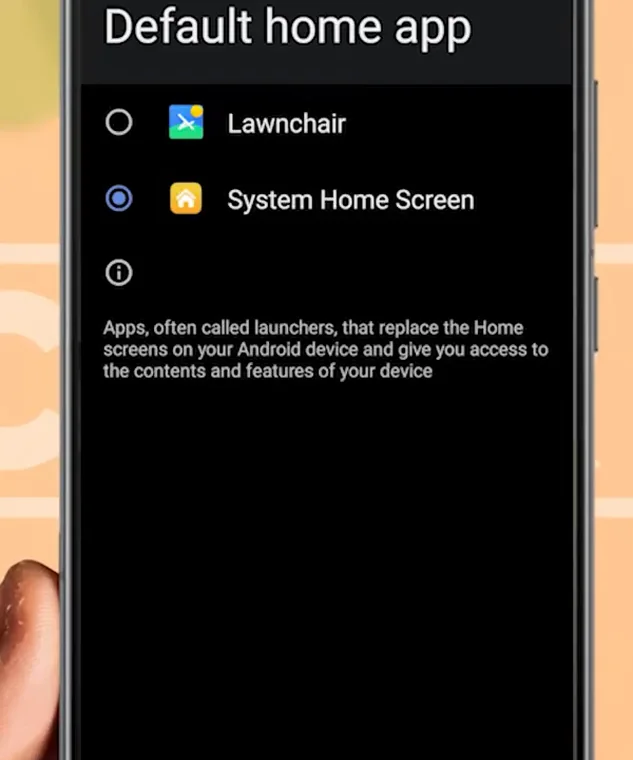
From my video at 1:05: The Default home app screen, where you pick Lawnchair.
Step 2: Match the Android 12 style
- Long-press the home screen and open Home settings.
- In General, turn on Themed icons.
- Set Accent color to Wallpaper, so colors follow your background.
- In Dock, turn on the search bar and apply the accent color.
- In App drawer, set background opacity to 80–90%.
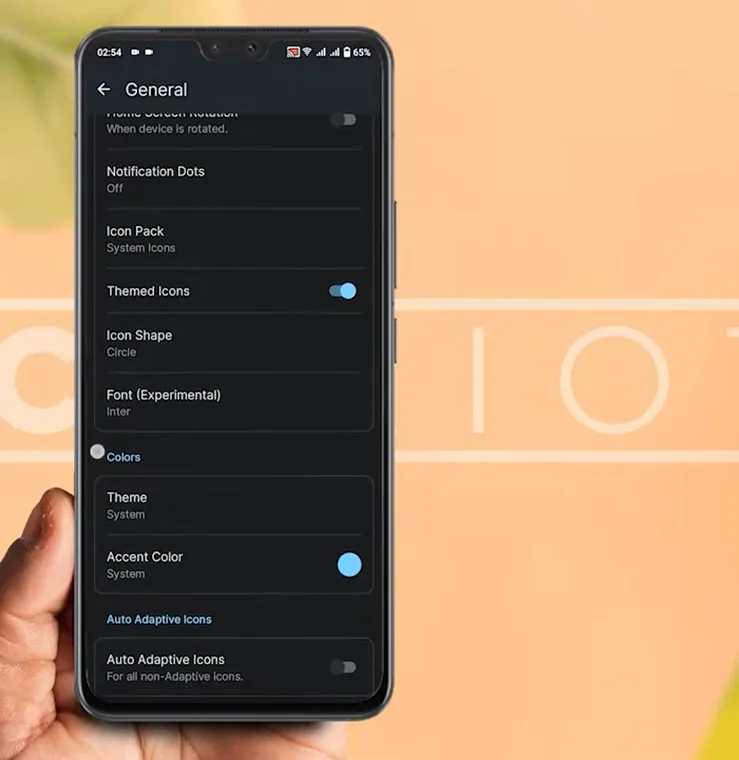
From my video at 1:53: Lawnchair → General: themed icons, icon shape, font and accent color.
Step 3: Pick a wallpaper
Open the Wallpapers app, go to Categories, choose a Google wallpaper (I used the Pixel 6 Pro one) and set it on both screens. The icons and search bar change color automatically. Try a few wallpapers. Each one gives the whole home screen a different color theme.
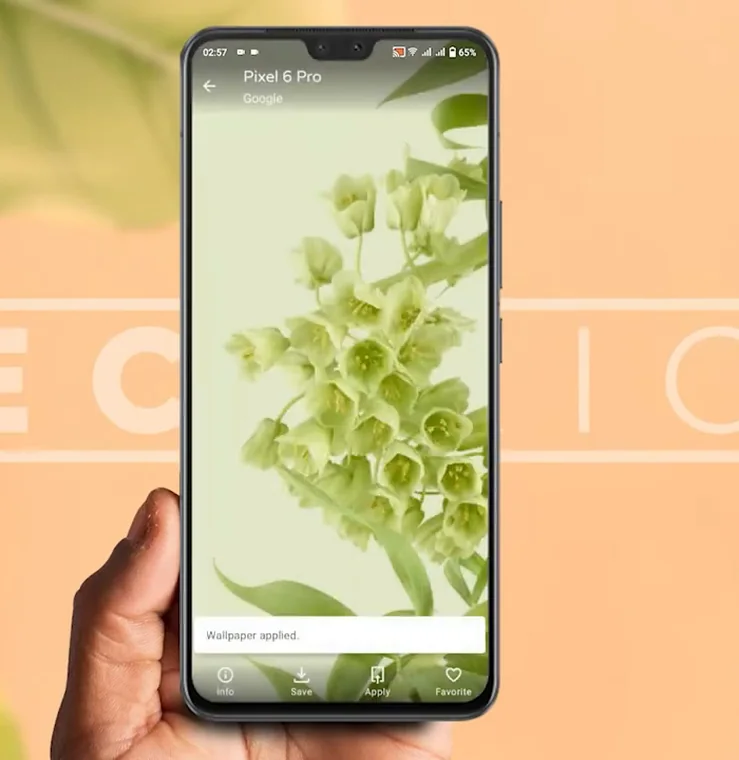
From my video at 3:53: Applying a Pixel 6 Pro wallpaper.
Step 4: Add widgets
- In Android 12 Clock Widgets, pick a free theme and add it to the home screen.
- In Android 12 Weather Widgets, set your city manually, pick a free style and add it.
- For quick toggles, add a KWGT widget (4x4), tap it and choose Material Toggles from Material Components. Grant the permissions it asks for.
KWGT is a widget builder. On its own it is an empty frame, and Material Components is a pack of ready-made designs you load into it.
Tip: Icons from apps without a themed version will not change color. Remove them from the home screen, or keep them in a folder, for the cleanest look.
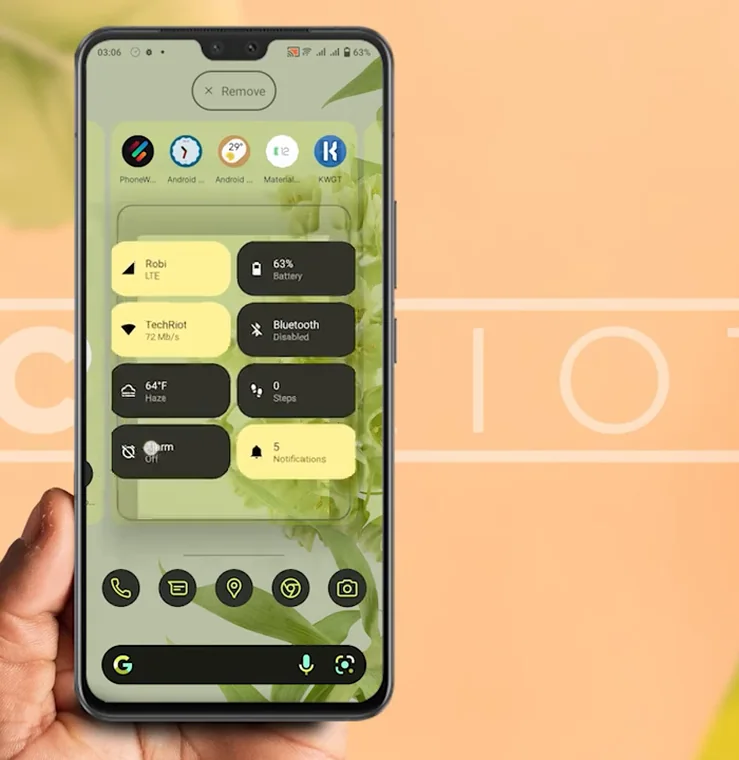
From my video at 8:17: The finished home screen with the Android 12-style widgets.
How to undo it
Open Settings, search for Default, open Default home app and choose your phone's original launcher again. Everything comes back as it was. You can then uninstall Lawnchair and the widget apps.
Common questions
Does this slow down my phone?
Lawnchair is light, and on most phones it feels just as fast as the built-in launcher. Very old phones may feel a little slower with many widgets.
Will I lose my apps or data?
No. A launcher only changes how your apps are arranged. Your apps, photos and settings are not touched.
Does a launcher update my phone to Android 12?
No. It only changes the home screen and app drawer. Your Android version, security patches and system settings stay the same. Check Settings → About phone to see your real version.
Is Lawnchair safe to use?
Lawnchair is a long-running open-source launcher. Install it from the Google Play Store or its official project page, never from repackaged APK sites.
The short version
Install Lawnchair and Lawnicons, set Lawnchair as your default home app, turn on themed icons and wallpaper accent colors, pick a Google wallpaper and add the free Android 12 widgets. To undo it, switch the default home app back.
Precaution
Third-party launchers and personalization apps may request broad permissions. Install from trusted sources and review privacy settings.
Tools & files from this guide
Keep going