
How to See and Block Wi-Fi Users on a TP-Link Router
See every device on your TP-Link Wi-Fi, tell your own from strangers using MAC addresses, block them with Access Control and keep them out for good.
 Mohammad Shojib AhmedUpdated · 7 min read · 15K views
 4:50 video
Key takeaway
Turn on Access Control before blocking, or the block list does nothing. Then change your Wi-Fi password so the same person cannot rejoin.
If you notice an unfamiliar device using your home Wi-Fi, you can inspect connected clients and use TP-Link Access Control to block it. This walkthrough follows the TP-Link Archer C60-style blue router interface shown in the original video. Other models and firmware versions may use different labels.
Quick answer: Sign in to your router, open Advanced → Security → Access Control, turn Access Control on, select Blacklist, choose the device under Online Devices, click Block, and save. Confirm the blocked device can no longer connect.
Before you begin
You need access to your own TP-Link router's admin page and a device connected to it. If possible, use an Ethernet-connected computer to change access controls so you do not accidentally block the device you are using. Never publish your router password, public IP address, client MAC addresses or device identifiers.
Step 1 — Open the router's administration page
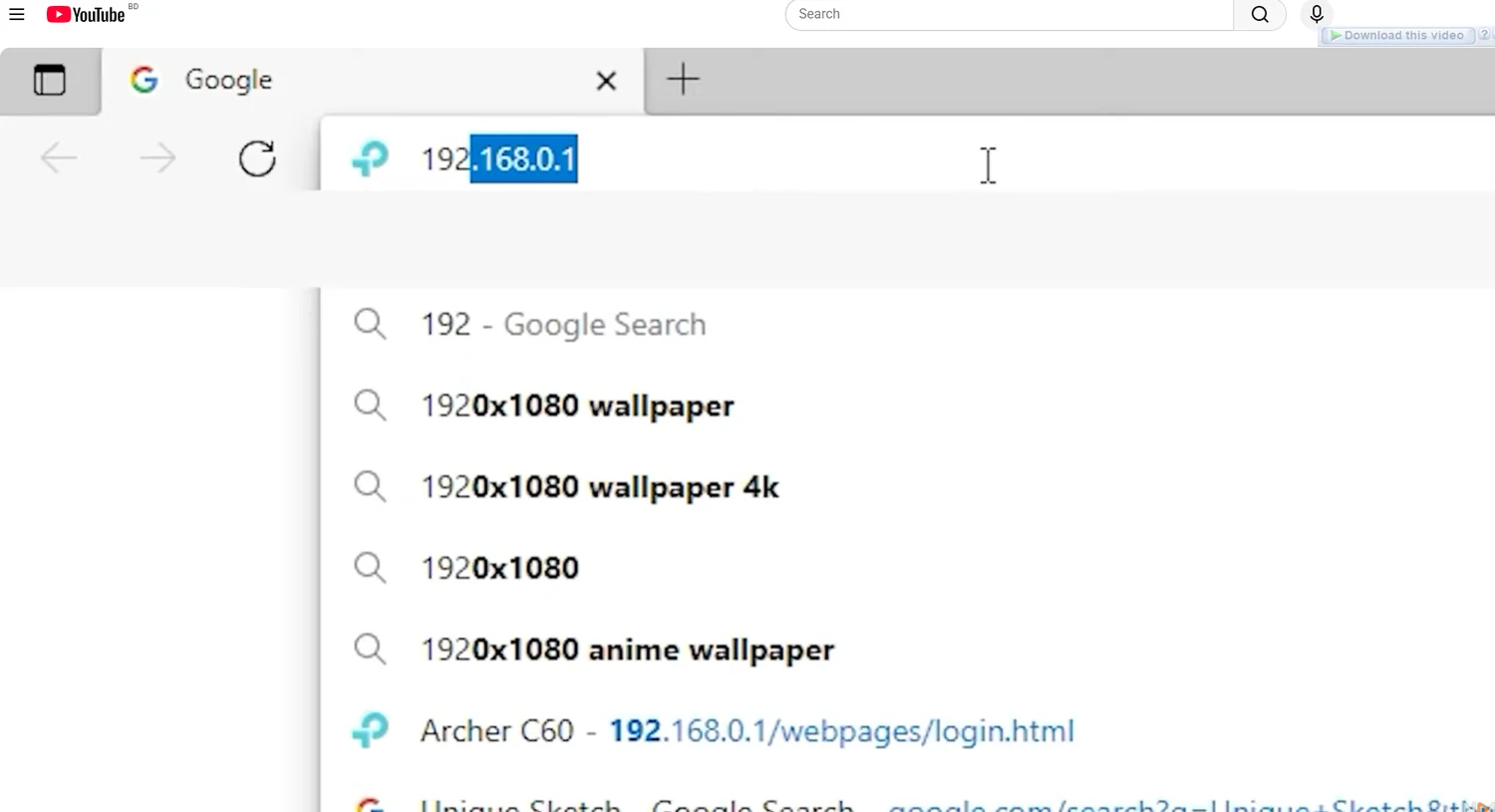
Connect to your TP-Link network and open a browser. In the original video, the Archer C60 router opens at 192.168.0.1; you can also try http://tplinkwifi.net, or check the address printed on your router. The address may differ on other configurations.
Step 2 — Sign in
Enter the login credentials you previously configured for your router. Some older models had default admin credentials, whereas newer devices require a password created during setup. Use the credentials appropriate for your own router; do not attempt to sign in to someone else's equipment.

Step 3 — Identify the connected devices
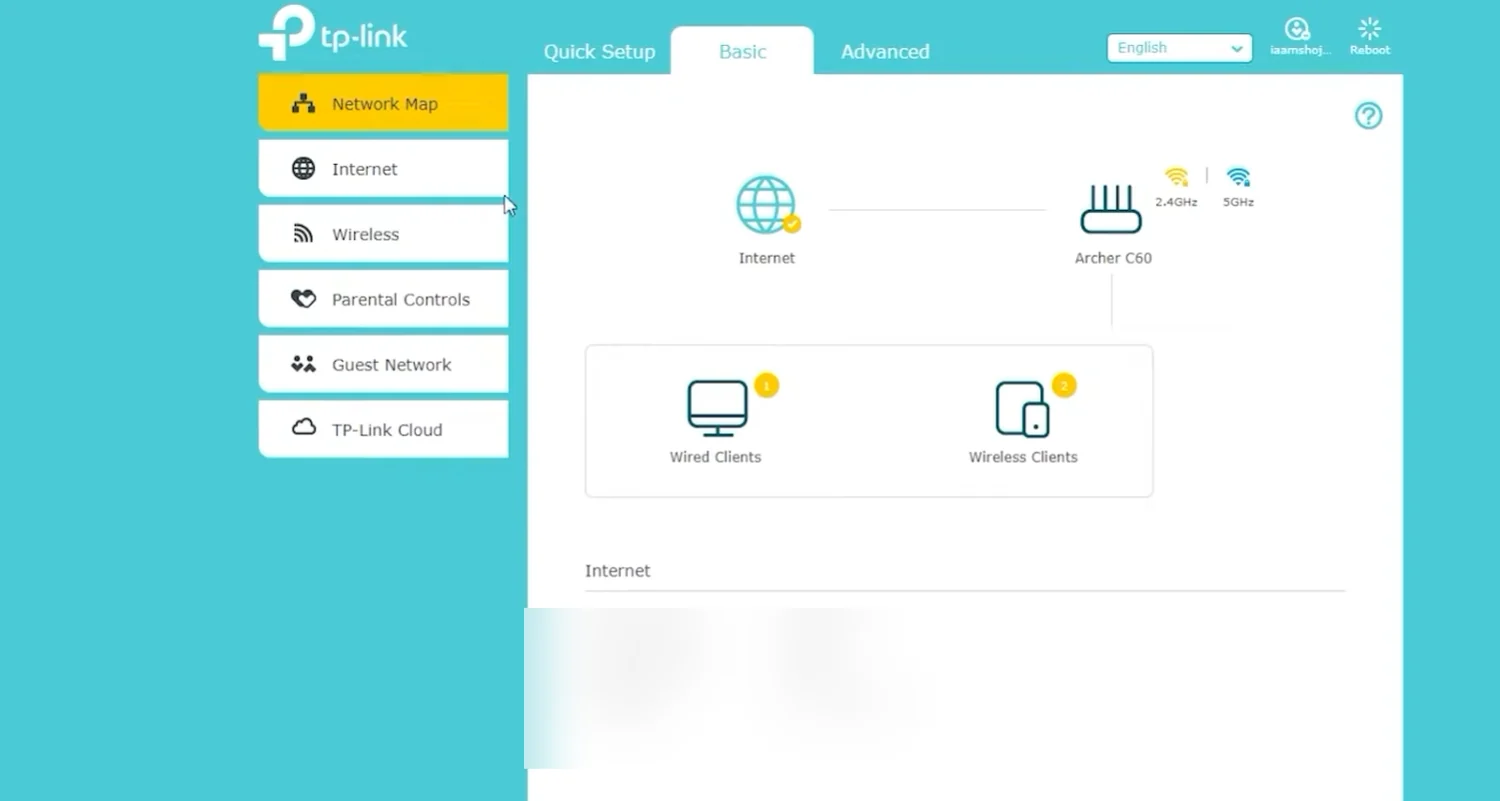
After signing in, open the Basic → Network Map if it is not already displayed. The video shows counts for Wired Clients and Wireless Clients. Click the relevant client group to examine entries and compare them with your devices. Use the name, local IP and MAC address as clues, but remember that names can be generic and some phones use private or randomized MAC addresses.
Tip: Before blocking an unknown device, temporarily turn off Wi-Fi on one of your own phones and refresh the list. This can help you identify which entry belongs to it.
Step 4 — Open Access Control
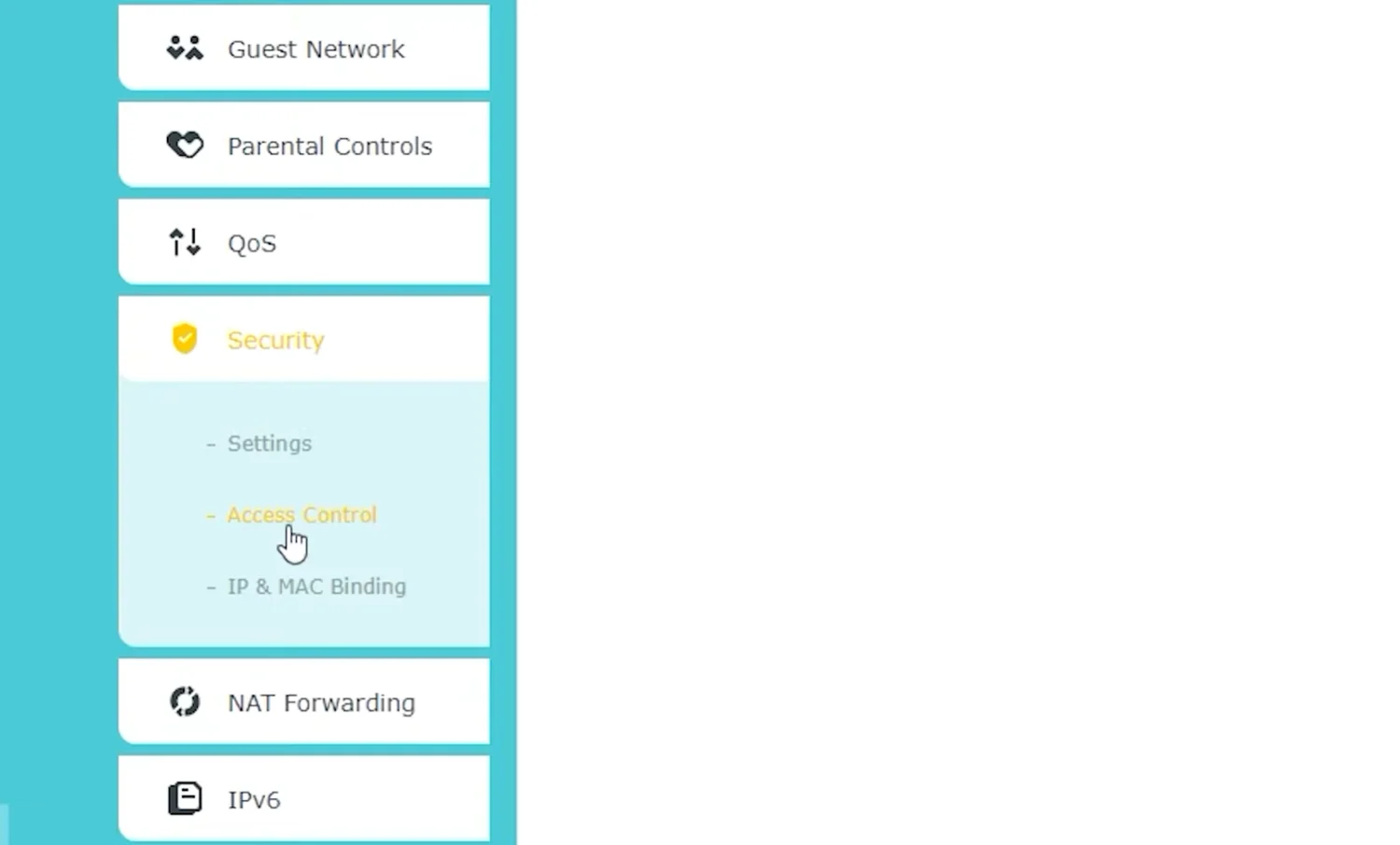
Switch to Advanced at the top. In the left menu, select Security → Access Control. This is the same navigation path used in the original recording.
Step 5 — Enable Access Control and choose Blacklist
Turn the Access Control switch on, select Blacklist under Access Mode, and save the configuration. The switch matters: when Access Control is disabled, a stored blacklist will not enforce blocking.
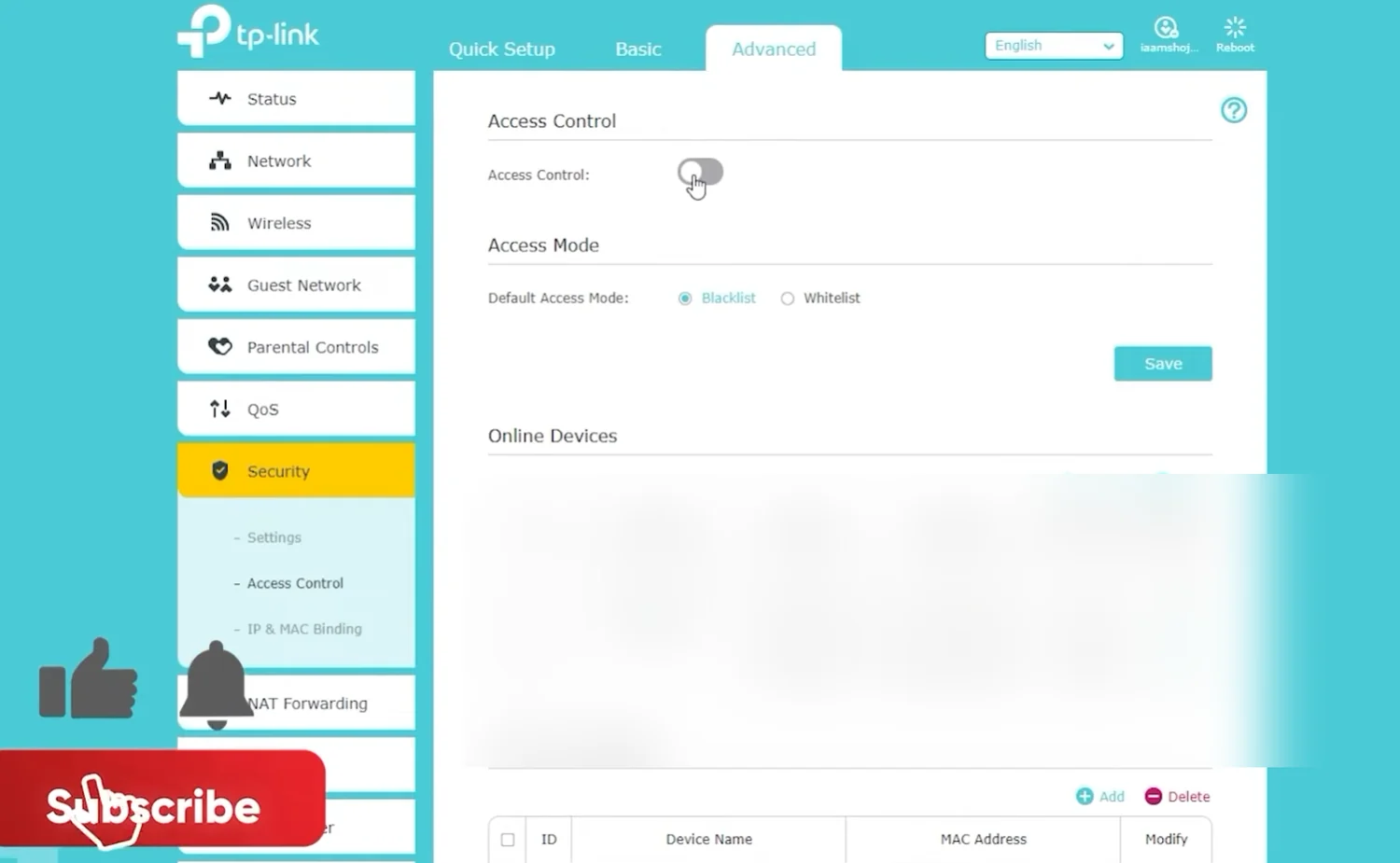
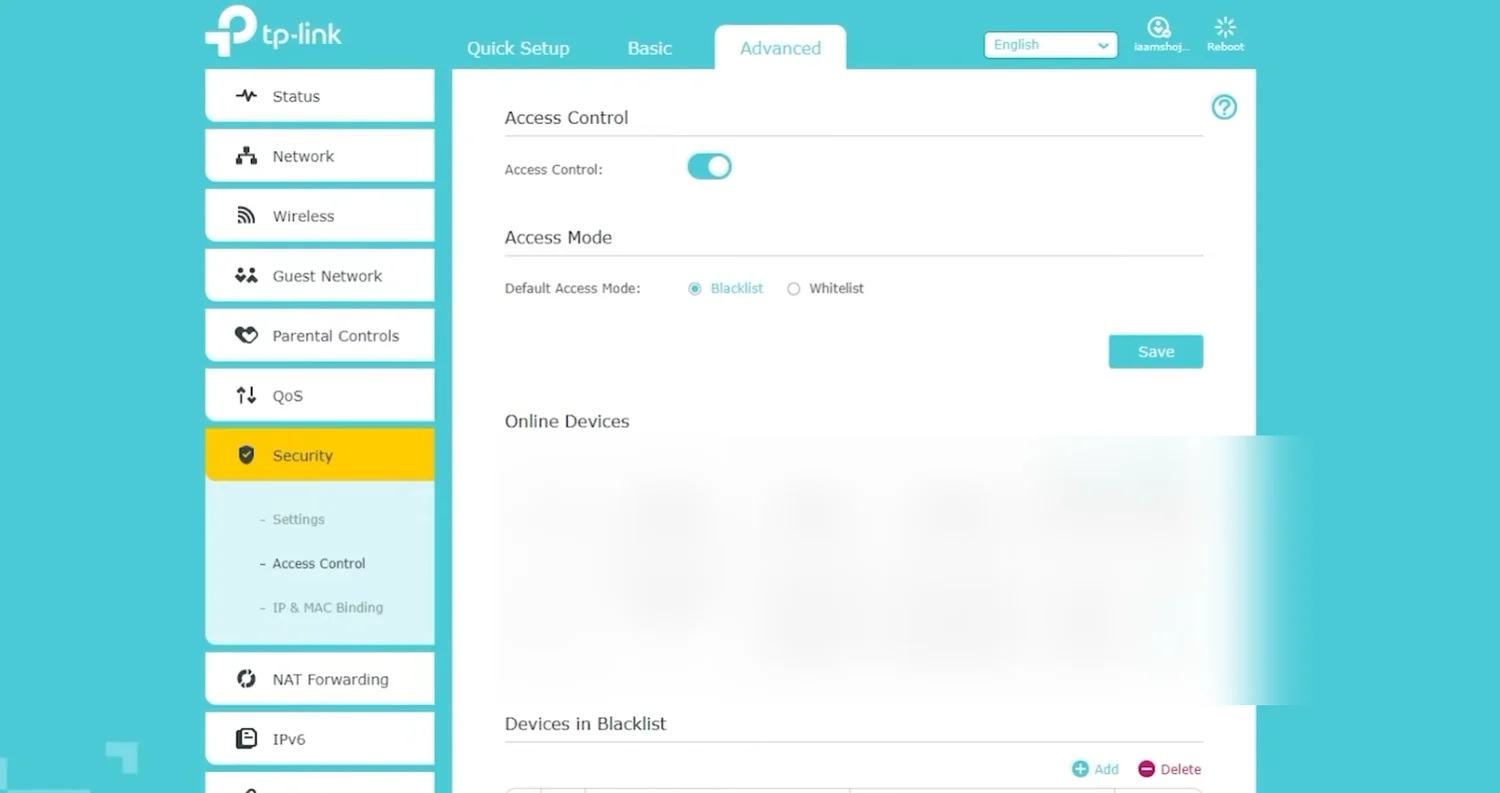
Blacklist vs. Whitelist: Blacklist denies listed clients; all other clients remain allowed. Whitelist allows only listed clients. Do not switch to Whitelist until your own devices, especially the management device, are correctly allowed.
Step 6 — Block the selected device
Under Online Devices, identify the client you intend to block. Select its checkbox, click Block, then confirm and Save if your firmware requests it. The blocked entry should appear in Devices in Blacklist.
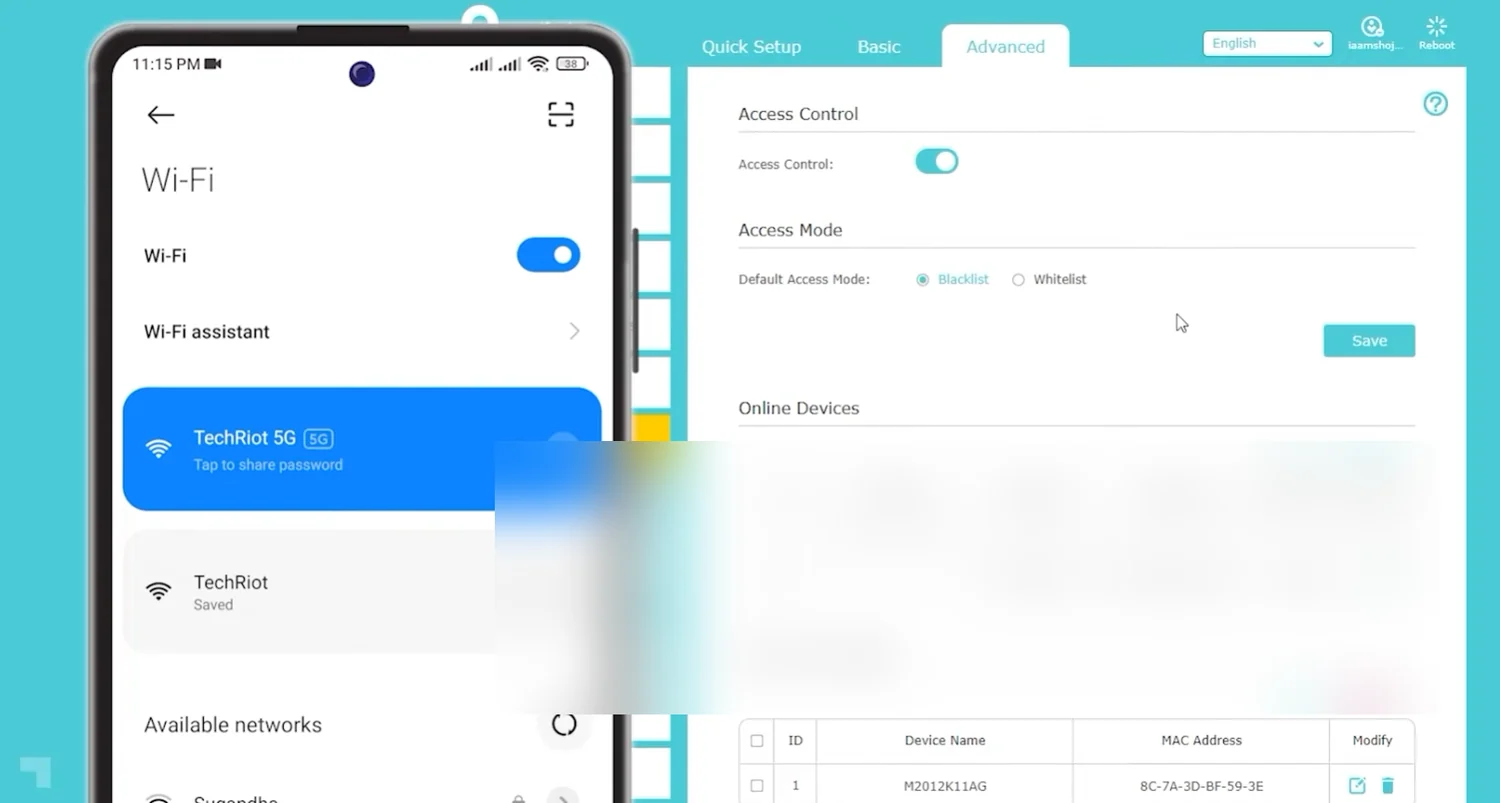
The video demonstrates blocking an Android phone that was connected through Wi-Fi. Select carefully: blocking your own admin device can interrupt your access to the router.
Step 7 — Verify the result using the phone
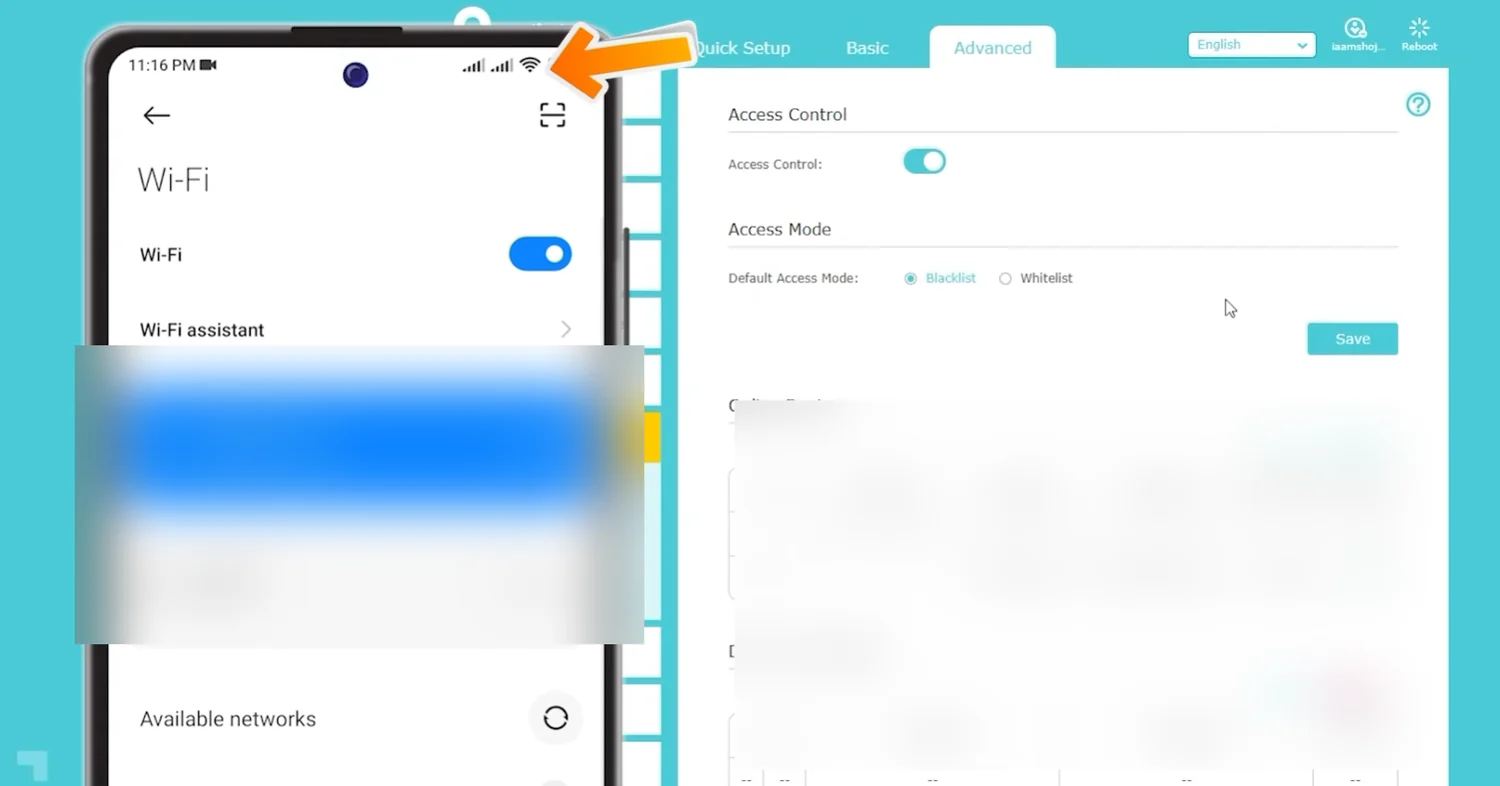
Return to the selected phone's Wi-Fi settings. In the original recording, the phone can see the network but no longer connects normally after the blacklist is applied. It is possible for different devices and firmware versions to display different error messages, so look for the actual connection failure, not one specific notification.
Step 8 — Unblock the device, if needed
To restore access, return to Advanced → Security → Access Control, find the device under Devices in Blacklist, remove it, and save. The video then confirms the phone can reconnect to its Wi-Fi network.
Optional — Understand Whitelist mode
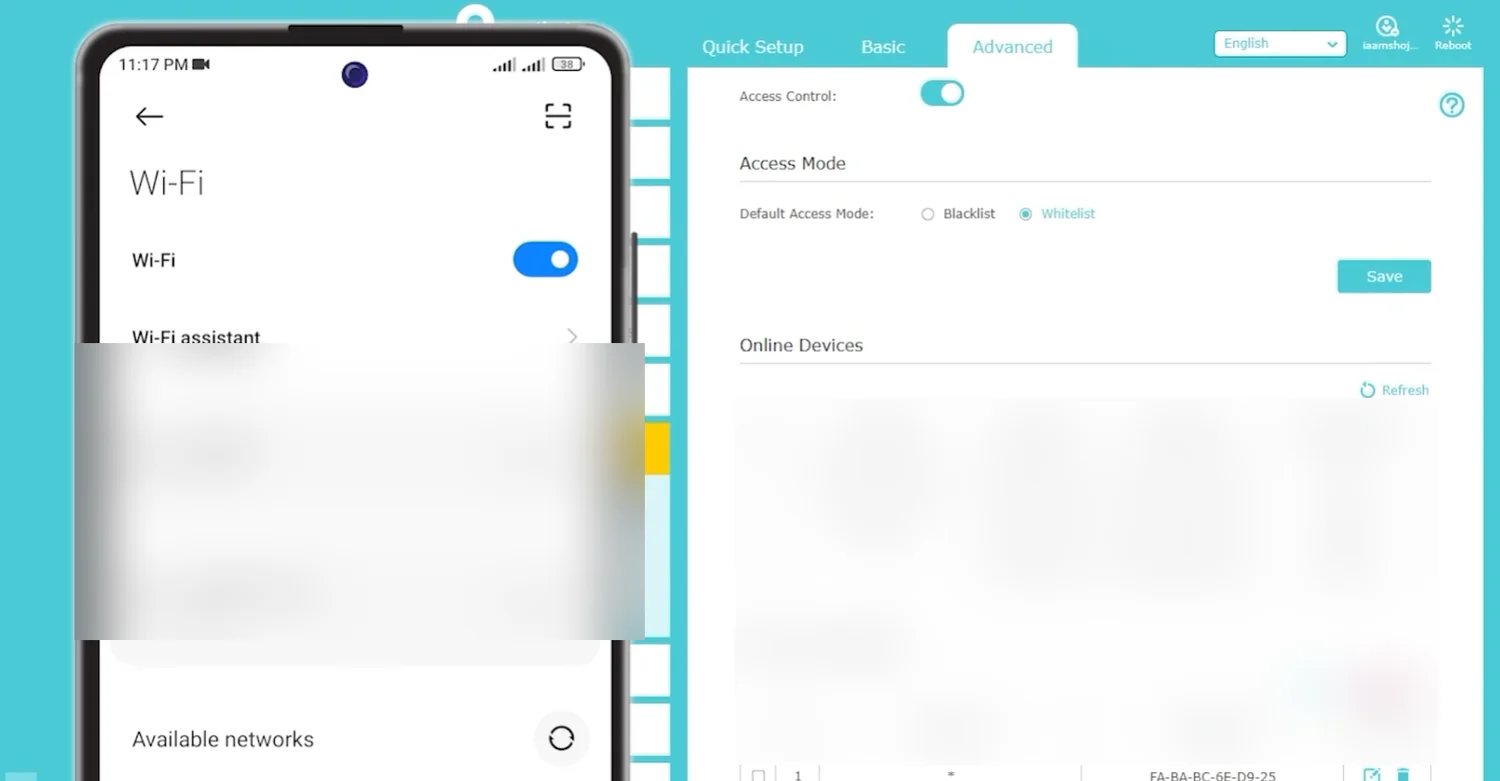
The demonstration also briefly switches to Whitelist. This is a more restrictive setting: only the devices you explicitly allow can connect. Add every device that must retain access before applying this mode. The exact interface varies by TP-Link model and firmware.
Troubleshooting and precautions
- Cannot open router login: Check the default gateway in your device's network details or the sticker on your router.
192.168.0.1is not universal. - Blocked device still connected: Confirm Access Control is on, Blacklist is selected, and you saved the entry. Refresh the client list and reconnect the device to test.
- Unknown device returns: Change the Wi-Fi password, use WPA2-AES or WPA3 where supported, review WPS settings, and install supported router firmware updates. MAC-based blocking alone is not strong protection because MAC addresses can change or be spoofed.
- Wired clients: The video focuses on wireless devices, but TP-Link documents that Access Control can apply to both wired and wireless clients on supported Archer models. Check your exact router's firmware documentation.
- Locked out: If you block the device managing the router or change to Whitelist incorrectly, reconnect using a permitted Ethernet device or consult the router manufacturer's recovery instructions. Avoid resetting the router unless you understand the consequences.
Common questions
Why does a blocked device keep coming back?
Many phones use a random MAC address, so they can reappear as a “new” device. If a stranger knows your password, blocking alone will not stop them: change the Wi-Fi password.
Is blocking devices enough to secure my Wi-Fi?
No. Blocking is a management tool. Real protection comes from a strong password with WPA2-AES or WPA3, router firmware updates and turning off WPS if you do not use it.
Can I block devices from the TP-Link Tether app?
On many TP-Link routers, yes: the Tether app shows connected clients and lets you block them. The menus differ from the web page shown here.
What if I block my own phone by mistake?
Sign in from another device, such as a laptop on Ethernet, and remove the entry. Read Whitelist mode carefully before using it, because it blocks every device you have not added.
The takeaway
To block a device on this TP-Link interface, identify it in the client list, switch on Access Control, use Blacklist mode, block the selected client and save. Then test the result and update your Wi-Fi password if you suspect unauthorized access.
Original video: The article is adapted from NextMotion's earlier TP-Link Archer C60 demonstration. The screenshots show that older firmware interface; modern firmware may use Deny List / Allow List instead.
Keep going