
How to Use a BOYA BY-M1 Mic Without a Battery
Why the BOYA BY-M1 goes silent without a battery, what plug-in power and TRRS plugs mean, and how to use it on a PC with a cheap headset splitter.
 Mohammad Shojib AhmedUpdated · 7 min read · 27K views
 4:14 video
Key takeaway
Set the BY-M1 to OFF/Smartphone, plug it into a headset splitter, and connect the splitter's pink microphone plug to your PC's mic jack. No battery needed.
The BOYA BY-M1 is one of the most popular cheap lavalier mics, and it is the mic I use in my video on this fix. It normally runs on a small LR44 battery. If the battery is dead or missing and you plug the mic straight into a PC, it records nothing, and it is easy to think the mic is broken.
It is not broken. You can use it without the battery on a compatible computer. In this guide I explain how, and why it works, so you can solve the same problem with other small mics too.
Quick answer
Set the switch on the mic to OFF/Smartphone. Then connect it like this: BY-M1 → the headset splitter's combined socket → the splitter's pink microphone plug → your PC's microphone jack. If your laptop has one combined headset jack, you can usually plug the BY-M1 in directly, without a splitter.
What you need
- A BOYA BY-M1 microphone. The LR44 battery can be missing.
- For a PC with separate pink and green jacks: a headset splitter with one 3.5 mm headset socket on one end and separate microphone and headphone plugs on the other. It is sold as a "headset splitter" or "Y splitter for headset". A splitter made for sharing headphones between two people will not work.
- A microphone jack on your computer and a recording app to test with, such as Windows Voice Recorder.
Why the mic goes silent without a battery
A microphone like the BY-M1 needs a tiny amount of electricity to work. It can get that power from two places:
- The battery, when the switch is on Camera. Most cameras do not send power to the mic, so the battery does the job.
- The device it is plugged into, when the switch is on OFF/Smartphone. Phones and most computer microphone jacks send a small voltage down the cable. This is called plug-in power.
So without a battery, the mic must be on OFF/Smartphone and plugged into something that provides plug-in power. A PC's microphone jack does. The only remaining problem is the plug.
The plug problem, in plain words
Look at the end of the BY-M1 cable. It has three black rings on it. That type of plug is called TRRS, and it is made for phones, where one plug carries headphone sound and the microphone together.
Many desktop PCs have separate jacks: a pink one for the microphone and a green one for headphones. Those use plugs with two rings, called TRS. If you push a TRRS plug into a pink TRS jack, the microphone signal lands on the wrong contact, and you get silence. That is exactly what happens at the start of my video: I plug the mic straight into the PC and Voice Recorder picks up nothing.
A headset splitter fixes this. It takes the TRRS plug on one side and splits it into a separate microphone plug and headphone plug on the other.
Steps
Step 1: Set the switch to OFF/Smartphone
Move the slider on the BY-M1 from Camera to OFF/Smartphone. This is the step most people miss: in Camera mode the mic needs the battery. In my video I only mention this switch at the end, so set it first, before you test.
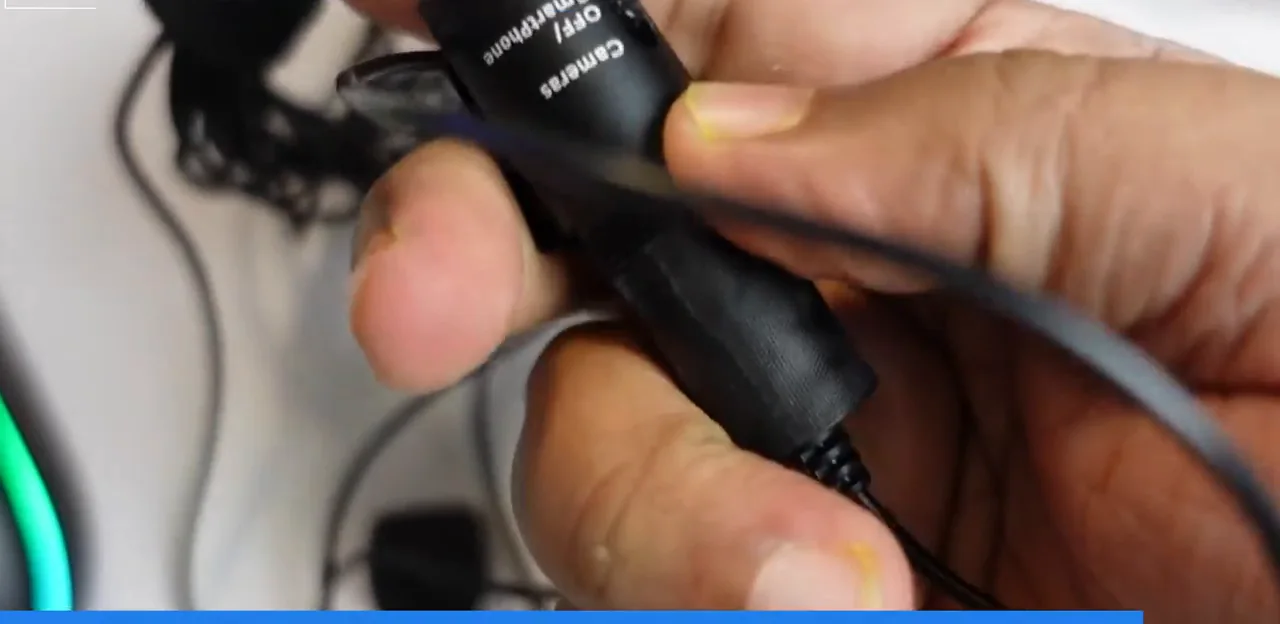
From my video at 3:29: The BY-M1 battery housing with its Camera and OFF/Smartphone switch, shown near the end of my video.
Step 2: Plug the mic into the splitter
Push the BY-M1's three-ring plug all the way into the splitter's single headset socket. A half-inserted plug is a common reason for silence.
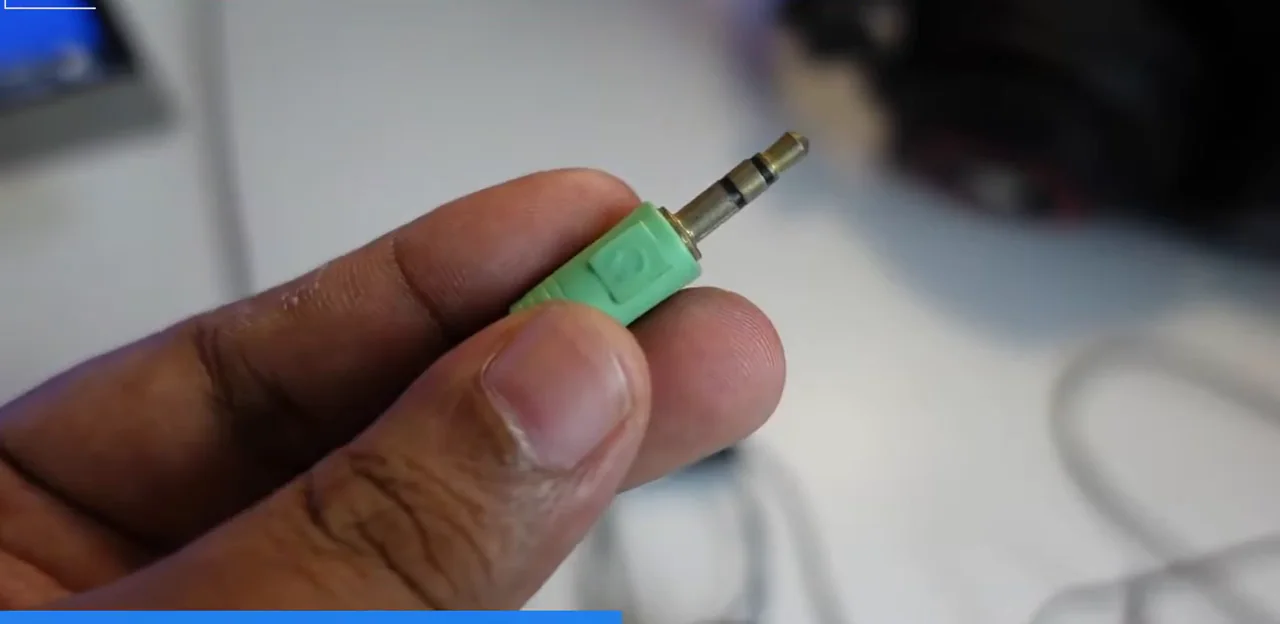
From my video at 2:11: The headset splitter I used.
Step 3: Connect the microphone plug to your PC
Plug the splitter's microphone plug, the one that is pink or has a mic icon, into the PC's microphone jack. You do not need the green headphone plug. Do not use the headphone jack: it is an output and cannot record.
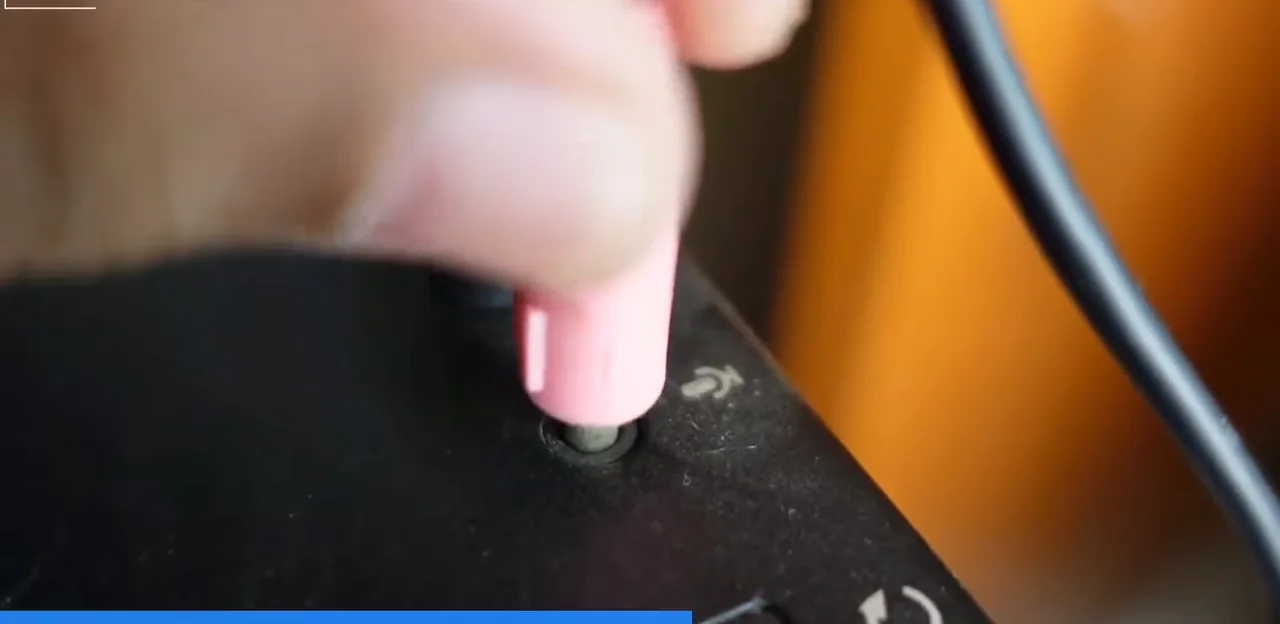
From my video at 2:22: Plugging into the pink microphone jack on my PC.
Step 4: Record a short test
Open Windows Voice Recorder, or any recording app, and choose the external microphone if it asks. Speak near the mic and play the recording back. In my video, the recording works as soon as the splitter is connected.
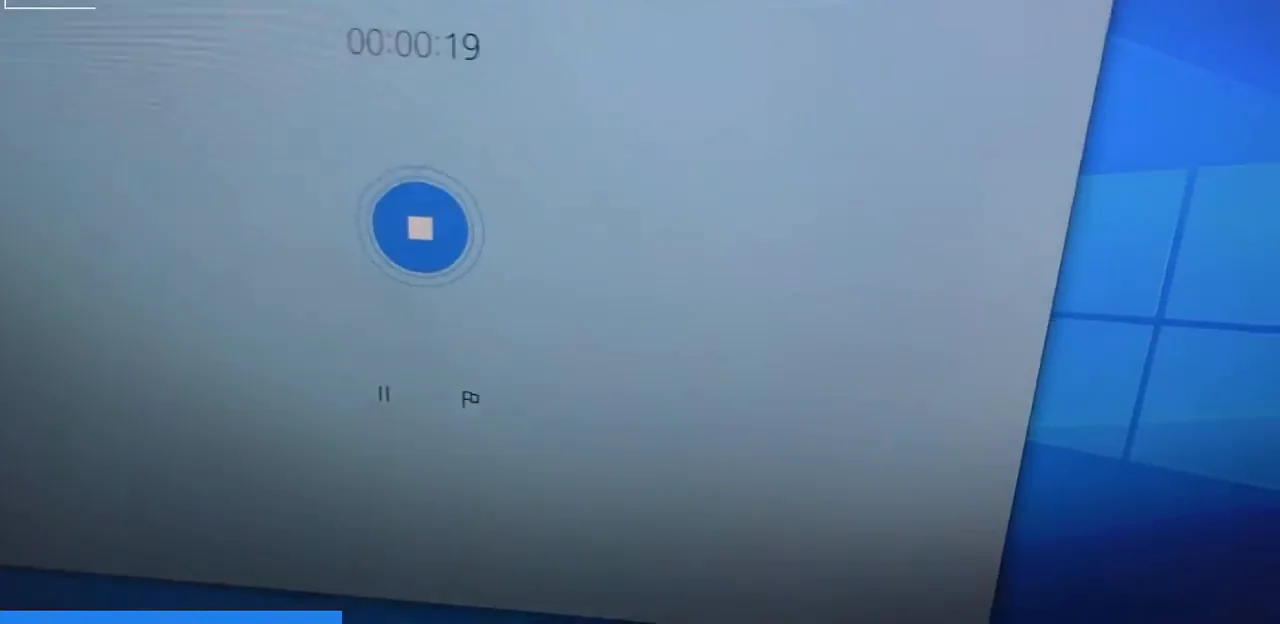
From my video at 1:30: Windows Voice Recorder recording through the BY-M1 with no battery fitted.
Set the level so it sounds good
Go to Settings, System, Sound, choose your microphone and open its properties. Set the input volume so your normal speaking voice reaches about two thirds of the meter. If the meter hits the top when you speak loudly, turn it down a little. Clip the mic about a hand's width below your chin, on your shirt, for the clearest sound.
If it still does not record
- Check the switch. It must be on OFF/Smartphone, not Camera. It is easy to knock it back.
- Check the splitter type. You need a headset splitter with one headset socket and separate mic and headphone plugs, not a headphone-sharing splitter.
- Check the jack. The pink microphone plug goes into the microphone jack, not the headphone jack.
- Check Windows. Go to Settings, System, Sound and select the external microphone as your input device. Also check that the recording app is allowed to use the microphone.
- Check the plugs. Push each one in fully. Try the back mic jack too: front panel jacks on some cases are not connected or are loose.
- Hearing a loud hum? The cable may be near a power cable, or a plug is not fully pushed in.
- Laptop with a combo jack? Skip the splitter and plug the BY-M1 in directly, in OFF/Smartphone mode.
Can I use it with a camera without a battery?
Usually not. Most cameras do not provide plug-in power, so the mic needs its battery and the Camera setting. If your camera's manual mentions plug-in power, it may work, but for cameras a fresh LR44 battery is the reliable option. BOYA's own manual describes battery-free use only for the OFF/Smartphone setting.
The short version
Set the BY-M1 to OFF/Smartphone so it uses your PC's plug-in power, and connect it through a headset splitter to the pink microphone jack. On a laptop with a combined headset jack, plug it straight in.
Precaution
This works only with a microphone input that provides plug-in power and a correctly wired splitter. It may not work with headphone-only jacks, every USB-C to 3.5 mm adapter, or cameras that need the battery. Test a short recording before anything important. The pictures in this guide are frames from my video, so the ports and connectors on your devices may look different.
Official BOYA BY-M1 manual: BY-M1 user manual (PDF)
Keep going