
Consistent AI Characters with AutoWhisk (Archived Workflow)
An archived example of keeping a character consistent across 20 images. Read the prompt and reference-image method alongside the original batch workflow.
 Mohammad Shojib AhmedUpdated · 6 min read · 159 views
 1:36 video
Key takeaway
Google shut down Whisk on April 30, 2026, so the AutoWhisk batch step no longer works. The character method still does: one fixed description, one reference image, and the same key details in every prompt.
Typing the same character description over and over is the slow part of AI image work. And even when you do, the character often looks slightly different in every image. In my video I keep one character consistent across 20 images and generate them all in one batch.
I use it for storyboards and story-style videos. Here is each step, and why it works.
Historical tutorial: Google shut down Whisk on April 30, 2026 and moved its main features into Google Flow, so the AutoWhisk extension shown in my video no longer generates images. I have kept the original workflow below as a record of the video. Steps 1 to 3 and the consistency tips still apply to image tools that accept a reference image. I have not tested a replacement batch workflow, so I am not recommending one here. Do not install extensions that claim to bring Whisk back.
Why AI characters change between images
Image generators do not remember earlier images. Each prompt starts fresh, so small differences in wording, or none at all, can change the face, hair or clothes. Two things fix most of this: using the exact same character description in every prompt, and giving the generator a reference image of the character to follow.
What you need
- ChatGPT, or any AI writing tool, to write the story and prompts.
- Google Gemini, to create the base character image.
- In the video: the free AutoWhisk browser extension, which sent many prompts to Google's Whisk image tool in one batch. It no longer works since Whisk was shut down.
Step 1: Write the story and scenes
Ask ChatGPT to write a short story, describe one main character in detail and list 20 scenes from the story. One fixed character description is what keeps every image consistent.
Make the description concrete: age, hair color and style, eye color, clothing with colors, and one or two unique details, such as round glasses or a red scarf. Vague descriptions like "a young man" give the generator too much freedom.
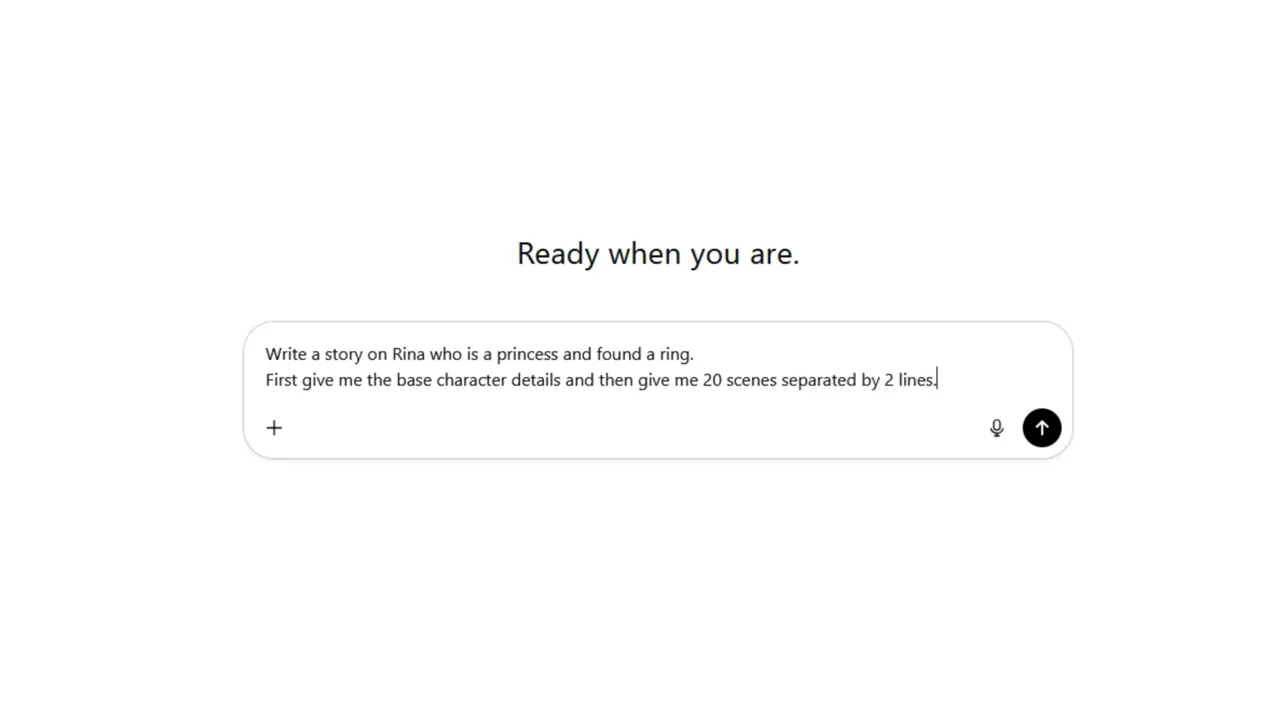
From my video at 0:30: Asking ChatGPT for the base character details and 20 scenes.
Step 2: Create the base character
Use the character description in Gemini to generate a single clear image of your character. A plain background and a front-facing pose work best. This becomes your reference image, so generate a few and pick the one you like most.
Step 3: Prepare the prompts
Ask ChatGPT to turn the 20 scenes into 20 image prompts and separate each prompt with two line breaks, which means one blank line between prompts. AutoWhisk uses those blank lines to split them into separate images.
Ask ChatGPT to start every prompt with the same short character description, then add the scene. For example: "A young woman with short black hair, round glasses and a red scarf, walking through a rainy market at night."
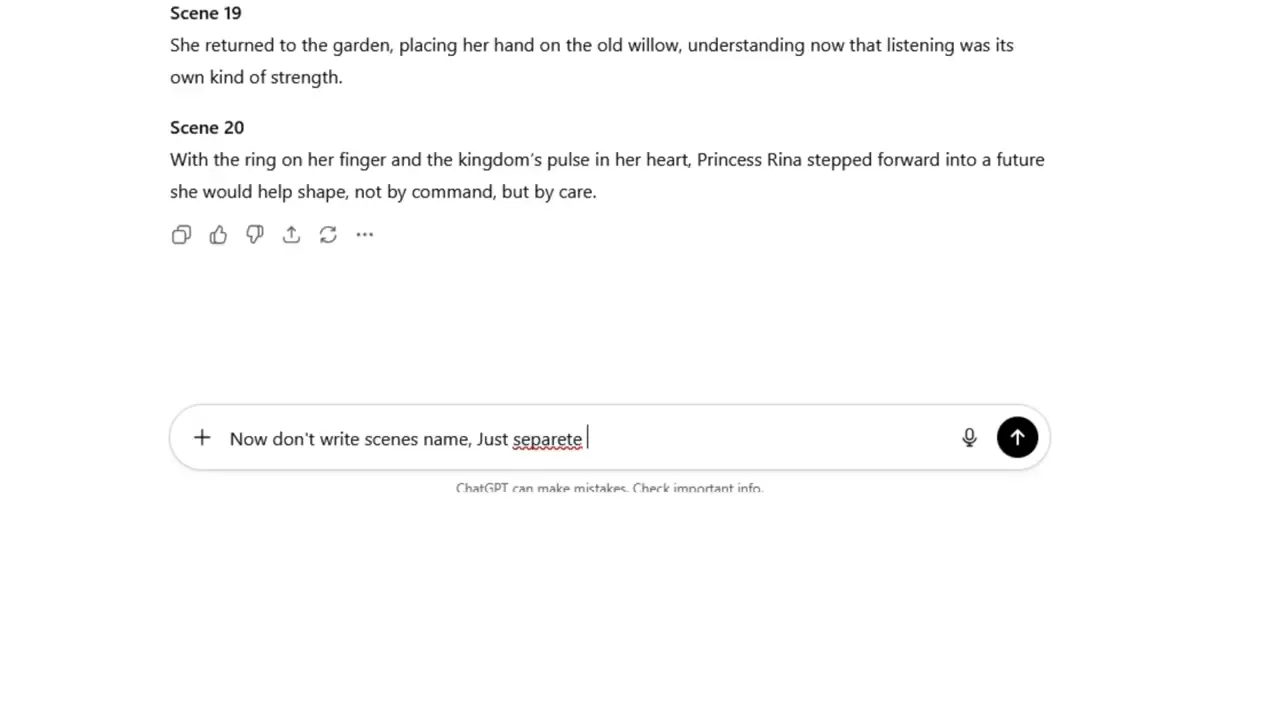
From my video at 0:53: Asking for the prompts without scene names, one per line.
Step 4: Generate in bulk
As shown in the video (no longer works): Whisk was shut down on April 30, 2026. Use this as a record of the original workflow, and do the same batch idea in a tool that is still available.
- Add the AutoWhisk extension to your browser and open it.
- Paste all 20 prompts.
- Add your base character image as the reference.
- Start the batch and let it generate every image.
Leave the browser tab open while it works. Depending on the number of prompts and the service's limits, it can take a while.
Tip: Keep the character's key details, such as hair, clothing and colors, in every prompt. Results stay mostly consistent. Regenerate any outliers one by one.
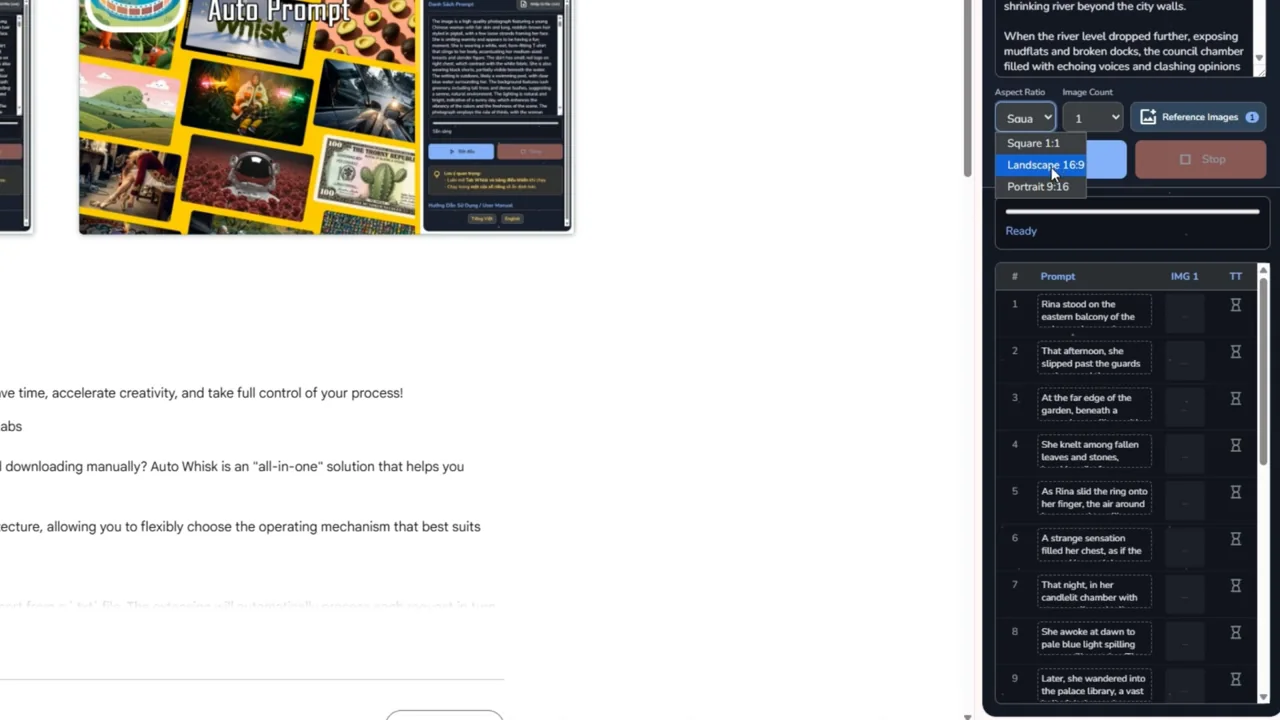
From my video at 1:17: The Auto Whisk extension panel with the prompts loaded.
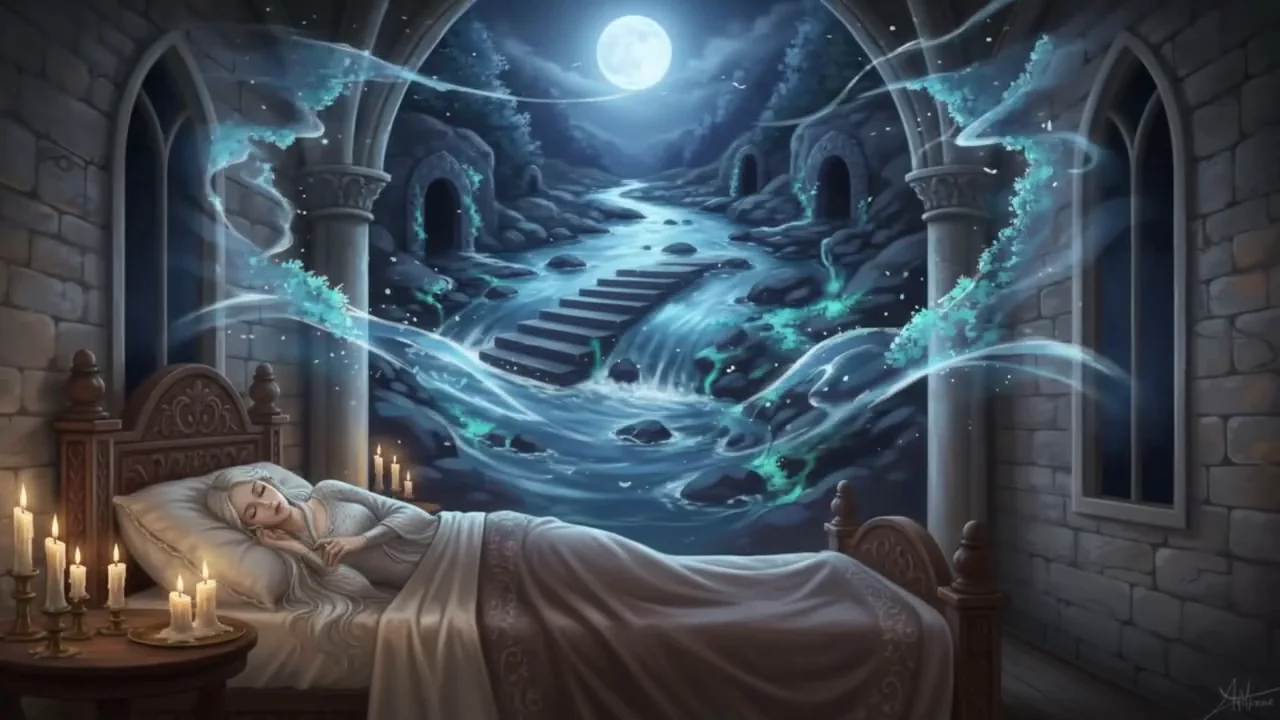
From my video at 1:28: One of the images from the batch.
Tips for better consistency
- Keep the art style the same in every prompt, for example "3D animated style" or "watercolor illustration".
- Avoid changing the character's outfit unless the story needs it.
- For close-ups, mention the face details again. For wide shots, focus on clothing and silhouette.
- Check that you have the right to use the images for your purpose, and follow the image service's terms.
Common questions
What replaced Google Whisk?
Google moved Whisk’s main features into Google Flow. Media left in a Whisk library after April 30, 2026 was deleted.
Can I still generate character images in bulk?
Yes, with any current image tool that accepts a reference image and a batch of prompts. Steps 1 to 3 of this guide (story, base character, prompts) work the same way.
Can I use AI character images commercially?
Check the terms of the tool you generate with, and make sure you have the rights to any reference images, brands or real people in them. A free tool does not automatically give you resale rights.
The short version
Write one detailed character description, create a reference image in Gemini, turn your scenes into prompts separated by blank lines, and let AutoWhisk generate them all with the reference image attached. Regenerate the few that drift.
Source: Google: Whisk is moving to Flow (April 30, 2026)
Precaution
AI app features and availability change. Verify the latest interface, terms, and rights before publishing or commercial use.
Tools & files from this guide
Keep going