
How to Permanently Delete Your Instagram Account from Your Phone
Delete your Instagram account for good from your phone's browser or the app, save your data first, and avoid the login that cancels the deletion.
 Mohammad Shojib AhmedUpdated · 6 min read · 213 views
 1:48 video
Key takeaway
Download your data, sign out everywhere, request deletion, then do not log in for 30 days or the account comes back.
You can permanently delete your Instagram account in a few minutes, either from your phone's browser or inside the Instagram app. The steps are quick. The part most people get wrong is what happens afterwards, because logging back in during the 30-day waiting period brings the account back.
In this guide I show the browser method from my video, the in-app method, what to do before you delete, and how the deletion period works.
Delete or deactivate? Know the difference
Instagram offers two options, and they are easy to mix up:
- Deactivate hides your profile, photos, comments and likes until you log in again. Nothing is deleted. It is a pause button.
- Delete removes your account for good after a waiting period. Your profile, posts, followers and messages cannot be recovered after that.
If you only need a break, deactivate. If you are sure you want everything gone, follow the steps below.
Before you delete: download your data
Once the account is deleted, your photos, videos and messages are gone. If you want to keep a copy, request it first. In the app, open your profile, tap the menu, open Accounts Center, then Your information and permissions, then Download your information. Instagram prepares a file and sends you a link when it is ready. Wait for that download before you delete the account.
Method 1: Delete from your phone's browser
- Open your phone's browser and open a new tab.
- Search for delete Instagram permanently.
- Open the Instagram Help page called Delete your account.
- Choose Delete my account, scroll down and tap the link to delete your account.
- Log in with your username and password.
- Choose a reason (I chose privacy concerns), enter your password again and tap Delete, then confirm.
Only use Instagram's own help page for this. Do not enter your password on websites or apps that promise to delete the account for you.
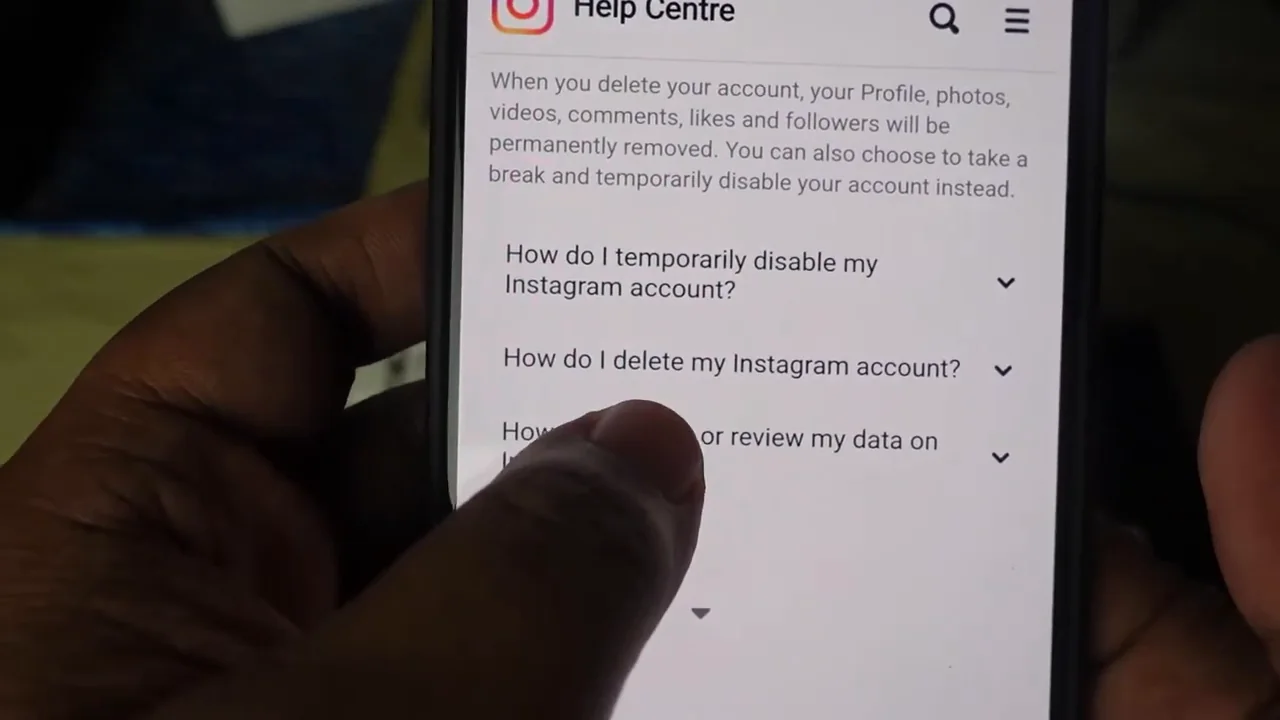
From my video at 0:29: Instagram Help Centre → How do I delete my Instagram account?
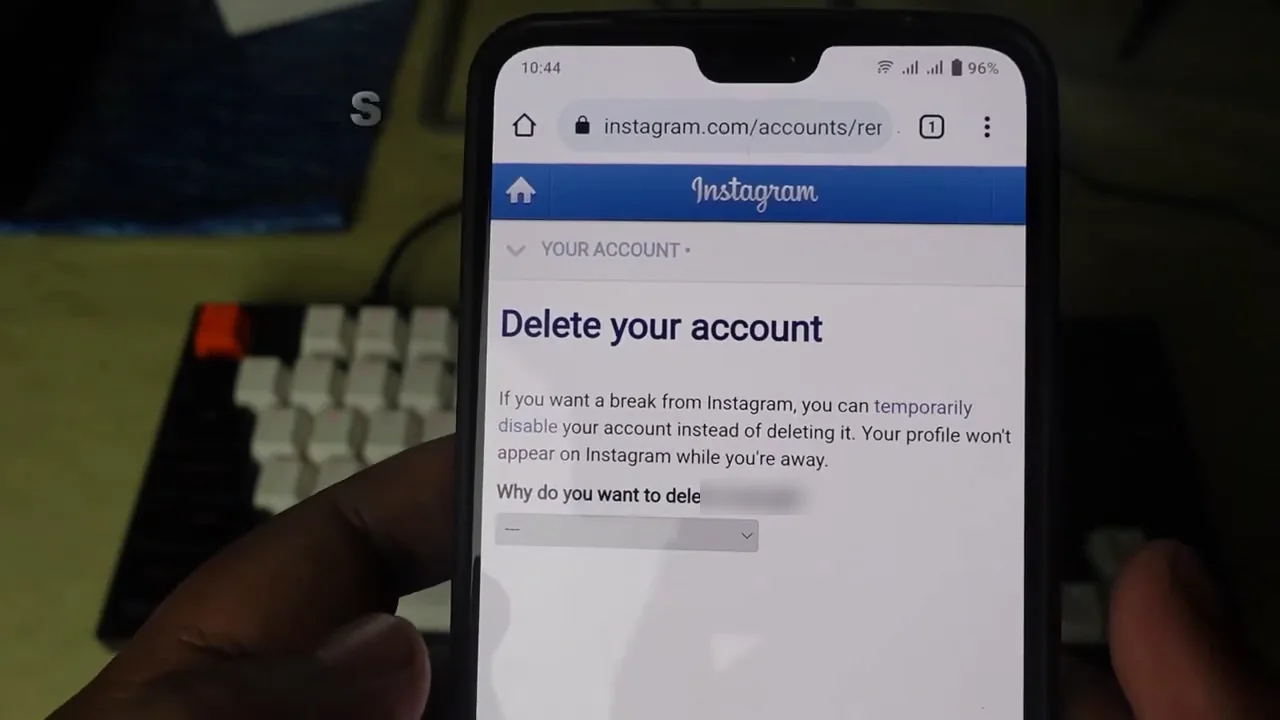
From my video at 0:56: The Delete your account page, with the reason drop-down.
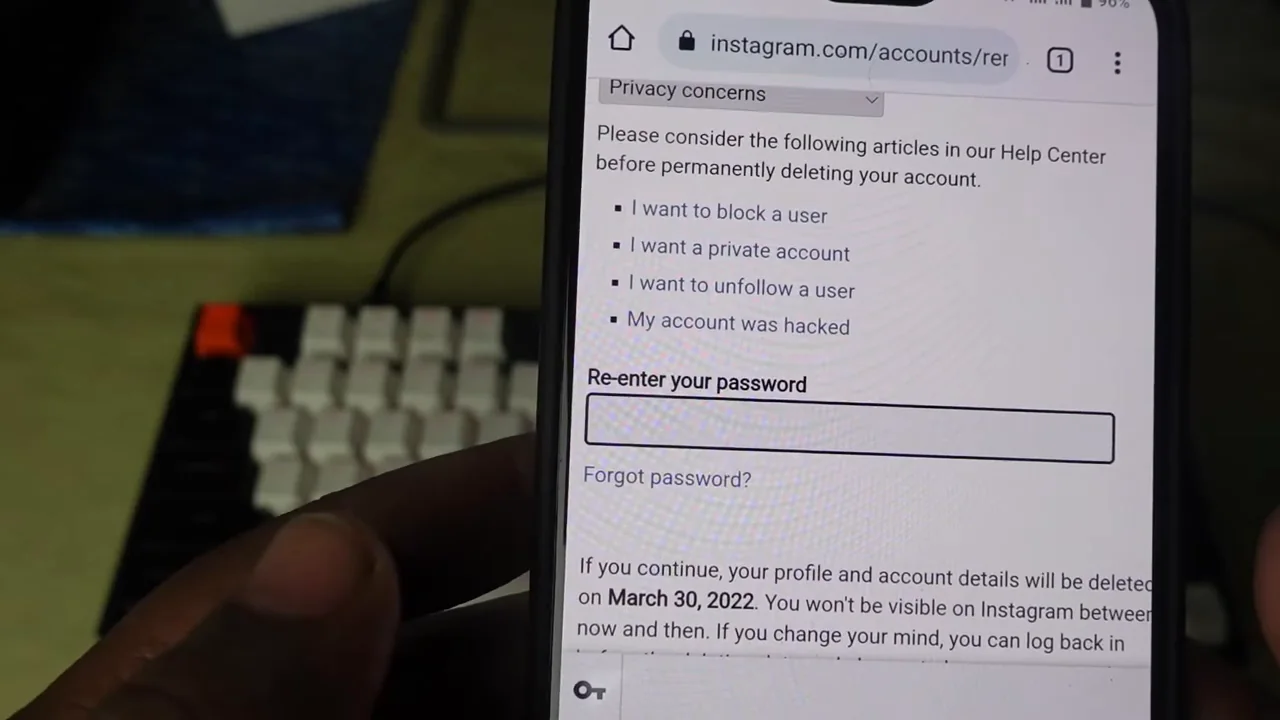
From my video at 1:04: Re-enter the password before confirming.
Method 2: Delete inside the Instagram app
- Open your profile and tap the menu icon in the top corner.
- Open Accounts Center, then Personal details.
- Tap Account ownership and control, then Deactivation or deletion.
- Choose the account you want to delete, select Delete account and follow the steps.
Menu names can change slightly as Instagram updates the app, but the deletion option lives inside Accounts Center.
After you request deletion
- Instagram shows the date your account will be deleted and logs you out.
- The account is hidden right away, but it is not deleted on the spot. Instagram waits 30 days before it deletes the account for good.
- Do not log in again before that date. Logging in during the waiting period cancels the deletion and reactivates your account.
- After the 30 days, the deletion is permanent. Instagram says it can take up to 90 days to remove everything from its systems, but your account is not visible during that time.
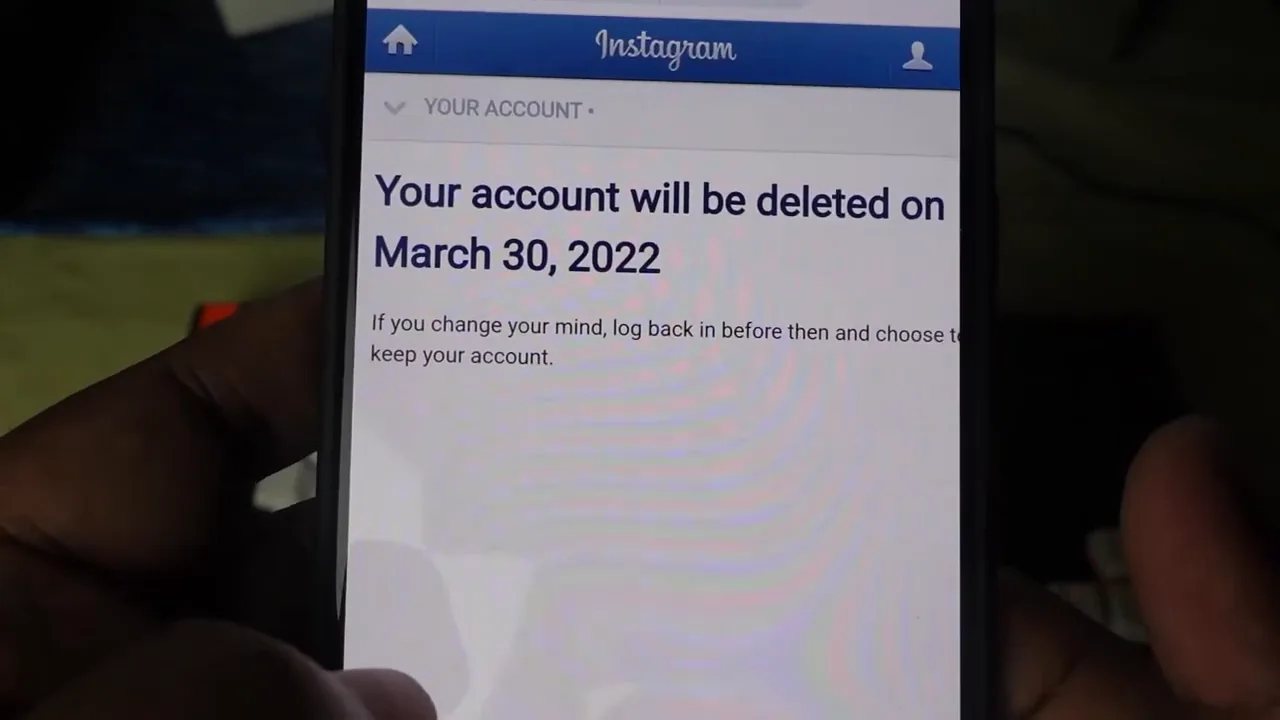
From my video at 1:18: Instagram confirmed: “Your account will be deleted on March 30, 2022.”
Avoid accidental logins
This is how most deletions fail. An old phone, a tablet, a browser or a third-party app is still signed in and logs in automatically. Before you request deletion, sign out of Instagram on every device, remove the account from any scheduling or editing apps, and delete the Instagram app from your phone until the date has passed.
Common questions
Can I use the same username again later?
Maybe, but there is no guarantee. Once an account is deleted, the username can become available, and someone else may take it first.
Does deleting Instagram delete my Facebook account?
No. If the accounts are linked in Accounts Center, only the Instagram account you choose is deleted.
Can I recover the account after 30 days?
No. After the waiting period, the account and its content cannot be restored.
The short version
Download your data, sign out everywhere, then request deletion from Instagram's help page or Accounts Center. After that, do not log in for 30 days. That is the step that makes the deletion permanent.
Precaution
Account deletion can be irreversible after the service’s grace period. Export your data and confirm the current official account-center instructions.
Keep going