
How to Fix “This App May Be Unsafe” on Windows 11
Identify a Smart App Control warning, check the installer’s source, and follow the Windows 11 walkthrough.
 Mohammad Shojib AhmedUpdated · 4 min read · 242 views
 1:07 video
Key takeaway
Read the warning to identify which Windows protection blocked the installer. Check for a signed version from the publisher before changing Smart App Control, which affects the whole PC.
You download a program, start the installer, and Windows 11 stops you with a warning that the app may be unsafe. This can happen even when you are trying to install legitimate software. In my video, I ran into that exact problem, changed a Smart App Control setting, and then completed the installation.
Here is the same fix written as a clear, step-by-step guide. It also explains how to recognize the setting and what to expect afterward.
Watch the original demonstration: https://www.youtube.com/watch?v=fVG9jOfrrEE
Before you change anything: make sure the warning actually names Smart App Control, and that the installer comes straight from the developer’s official site. A SmartScreen warning or a block set by your organization is a different thing with a different fix.
Why Windows 11 may block the installer
Smart App Control is a Windows 11 security feature that checks whether an application appears trustworthy. If Windows cannot establish enough trust in an app, it may block it from running. A blocked app is not automatically malicious, but neither does a legitimate-looking installer prove that it is safe.
The steps below apply when Smart App Control is the feature responsible for the block. Other Windows warnings, including Microsoft Defender SmartScreen alerts and administrator restrictions, may require different troubleshooting.
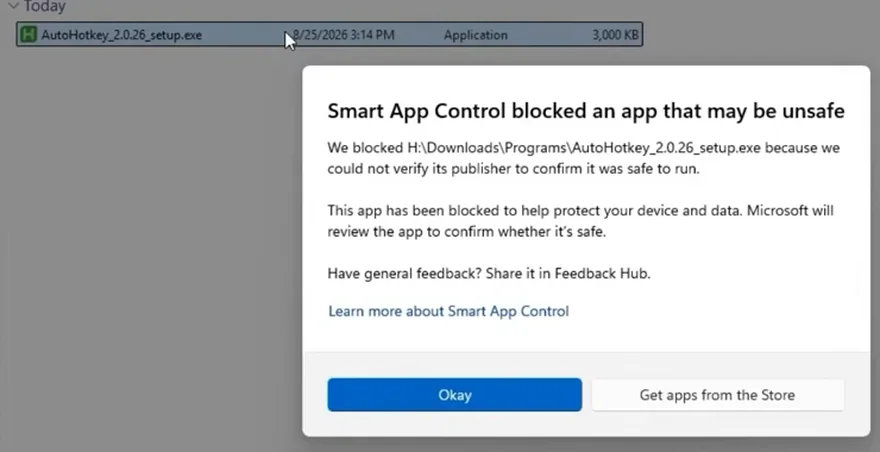
From my video at 0:10: The message I got: “Smart App Control blocked an app that may be unsafe”.
How to turn off Smart App Control in Windows 11
Step 1. Open Windows Settings
Select Start, type Settings into Windows Search, and open the Settings app. This is the first step shown in the video.
Step 2. Search for Smart App Control
Use the search box in Settings and type Smart App Control. Open the matching Smart App Control settings result. Depending on your Windows 11 version, this may open Windows Security directly.
You can also reach the setting manually through Windows Security → App & browser control → Smart App Control settings.
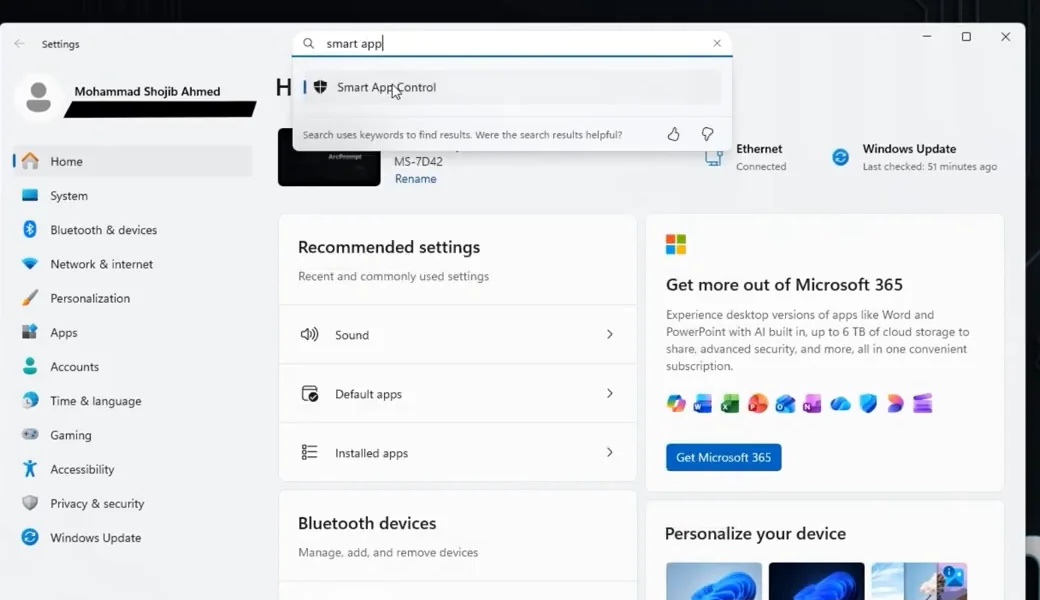
From my video at 0:29: Searching for Smart App Control in Settings.
Step 3. Check the setting, then switch it off
If Smart App Control is On and is the feature blocking your trusted installer, select Off and confirm the change if Windows asks you to. In the video, I switch this option off before trying the installation again.
If the feature is already Off, it is probably not the cause of this particular block. Do not change unrelated security settings to imitate the video.
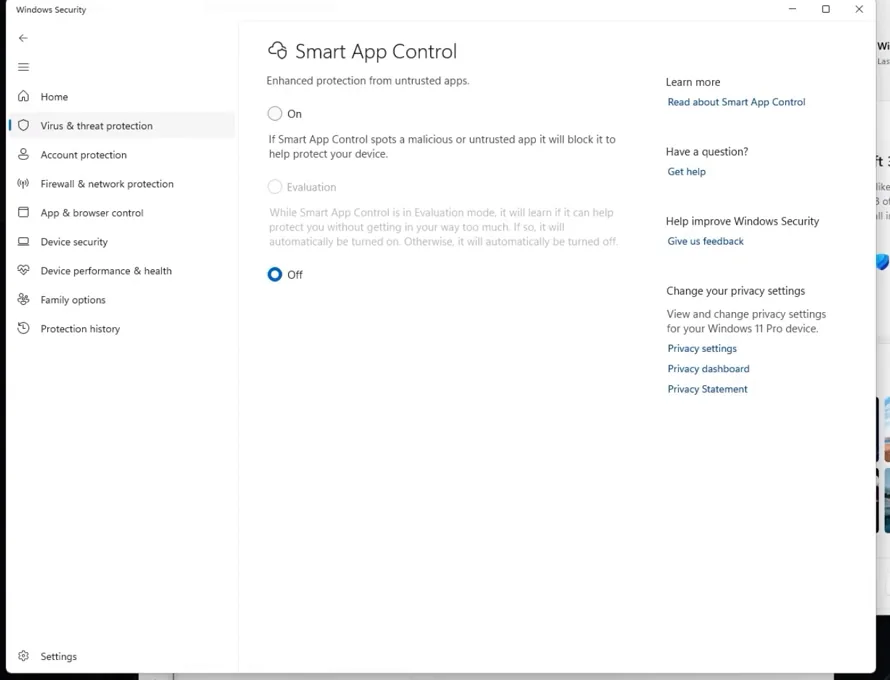
From my video at 0:37: Smart App Control set to Off.
Step 4. Retry the installer
Go back to the software installer and start it again. In my demonstration, the installation proceeds after I disable Smart App Control, and the program finishes installing successfully.
If Windows still blocks the installer, stop and read the exact warning. A different protection feature, a policy set by an administrator, or a problem with the installer may be responsible.
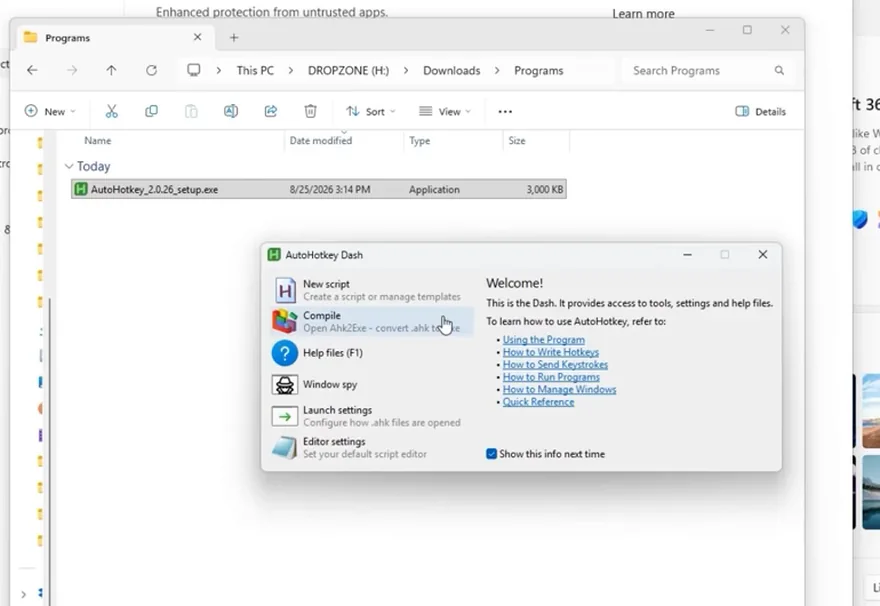
From my video at 1:01: The same installer now runs; here AutoHotkey’s welcome window opened.
What if you cannot find Smart App Control?
Smart App Control is a Windows 11 feature, but its availability and mode vary with how Windows was installed and how your PC is managed. If the setting does not appear, open Windows Security and check App & browser control. A message that says “Windows protected your PC” may be from Microsoft Defender SmartScreen rather than Smart App Control; these are not the same feature.
If the Smart App Control option is unavailable or grayed out, check Windows Update before trying anything else. Do not edit the registry or disable multiple protections simply to make a button appear.
Can Smart App Control be turned back on?
Microsoft says recent Windows 11 updates can allow Smart App Control to be switched back on from Windows Security without reinstalling Windows, where the feature is available. Older Windows builds may still impose limitations, so check the actual option on your PC. Microsoft also documented an October 2026 issue that prevented some users from re-enabling it; updates released on and after October 27, 2026 resolved that issue for Windows 11 versions 25H2 and 26H2.
Common questions
What does “This app may be unsafe” mean?
Smart App Control blocked a program because it is unsigned or Microsoft has no good reputation data for it. It does not always mean the app is malware.
Can I allow just one app?
No. Smart App Control has no per-app exceptions; it is all on or all off. A properly signed installer from the developer is the better fix.
Is it safe to turn off Smart App Control?
For software you have verified, from the developer’s official site, it is a reasonable trade-off. Keep Microsoft Defender on, and turn Smart App Control back on afterwards.
Quick recap
- Open Settings from Windows Search.
- Search for Smart App Control and open the setting.
- If it is responsible for blocking software you have verified as trustworthy, choose Off and confirm.
- Run the installer again and check whether installation completes.
Precaution
Turning off Smart App Control removes an extra layer of protection against untrusted apps. Use this method only for software you have verified as legitimate and safe—not pirated, suspicious, or unknown installers. Re-enable the feature if your Windows version allows it.
Original video: https://www.youtube.com/watch?v=fVG9jOfrrEE Official Microsoft guidance: https://support.microsoft.com/en-us/windows/security/threat-malware-protection/smart-app-control-frequently-asked-questions Windows Security settings: https://support.microsoft.com/en-au/windows/security/windows-security/app-browser-control-in-the-windows-security-app
Tools & files from this guide
Keep going