
Restore Taskbar Drag and Drop on Older Windows 11 with a Free Tool
Bring back taskbar drag and drop on Windows 11 21H2 with a free open-source tool, make it start with Windows, and know when you no longer need it.
 Mohammad Shojib AhmedUpdated · 5 min read · 4K views
 5:05 video
Key takeaway
Put the tool in its own folder, add the config file with the startup option set to 1, and run it once.
The first release of Windows 11 did not let you drag files onto taskbar icons, which broke my workflow with Photoshop and browsers. A free, open-source tool brought it back, and this guide shows how I set it up so it starts with Windows.
Historical guide: this tool is only for Windows 11 version 21H2, which no longer receives security updates. On Windows 11 22H2 and newer, taskbar drag and drop is built in, so update Windows instead of installing a helper.
First, check whether you still need it
Microsoft brought taskbar drag and drop back in Windows 11 version 22H2. Press Windows + R, type winver and press Enter. If you see 22H2 or newer, the feature is already built in and you do not need this tool. My guide on getting taskbar drag and drop back explains it.
This tool is for PCs that are still on version 21H2 and cannot update yet, for example a work computer where updates are controlled by someone else.
How the tool works, in plain words
The tool runs quietly in the background. When it sees you dragging a file over a taskbar icon, it brings that app's window to the front, just like Windows 10 did. It does not change Windows system files. If you close the program, the behavior stops, and if you delete it, everything is back to normal.
Step 1: Download the tool
- Download Windows 11 Drag & Drop to the Taskbar Fix from its official GitHub page, under Releases.
- If your browser or Windows warns about the file, it is because the program is unsigned. That means the developer has not paid for a code-signing certificate, not that it is harmful. It is open source, so anyone can read its code. Only download it from the official GitHub page.
- Run it. Taskbar drag and drop works while the program is running.
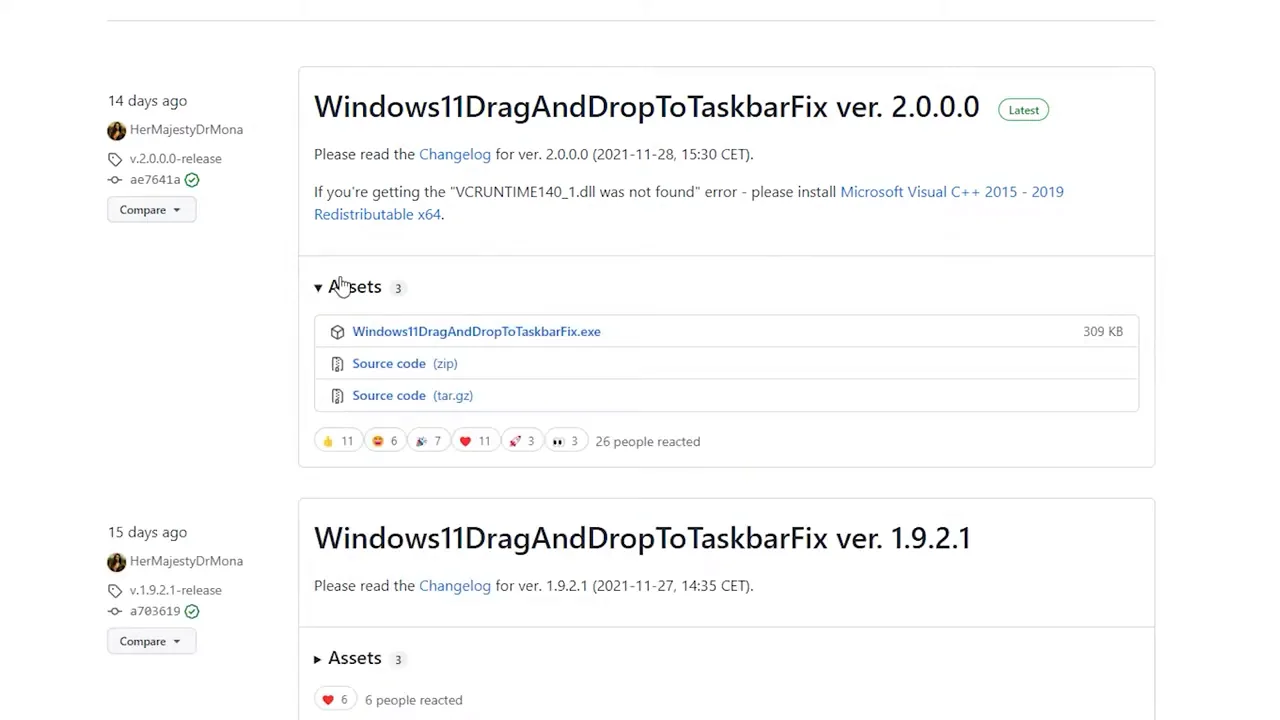
From my video at 0:46: The tool’s GitHub release page.
Step 2: Make it start with Windows
If the program is not running, drag and drop stops. To avoid opening it after every restart:
- Create a folder for it, for example C:\Drag and Drop, and move the program into it. A fixed folder matters, because the startup entry points to this exact location.
- In the same folder create a text file named Windows11DragAndDropToTaskbarFixConfig.txt.
- Add the startup setting from the project's readme (AutomaticallyRunThisProgramOnStartup=1) and save.
- Run the program once from that folder.
- Restart. Open Task Manager, then Startup apps. The fix should be listed and enabled.
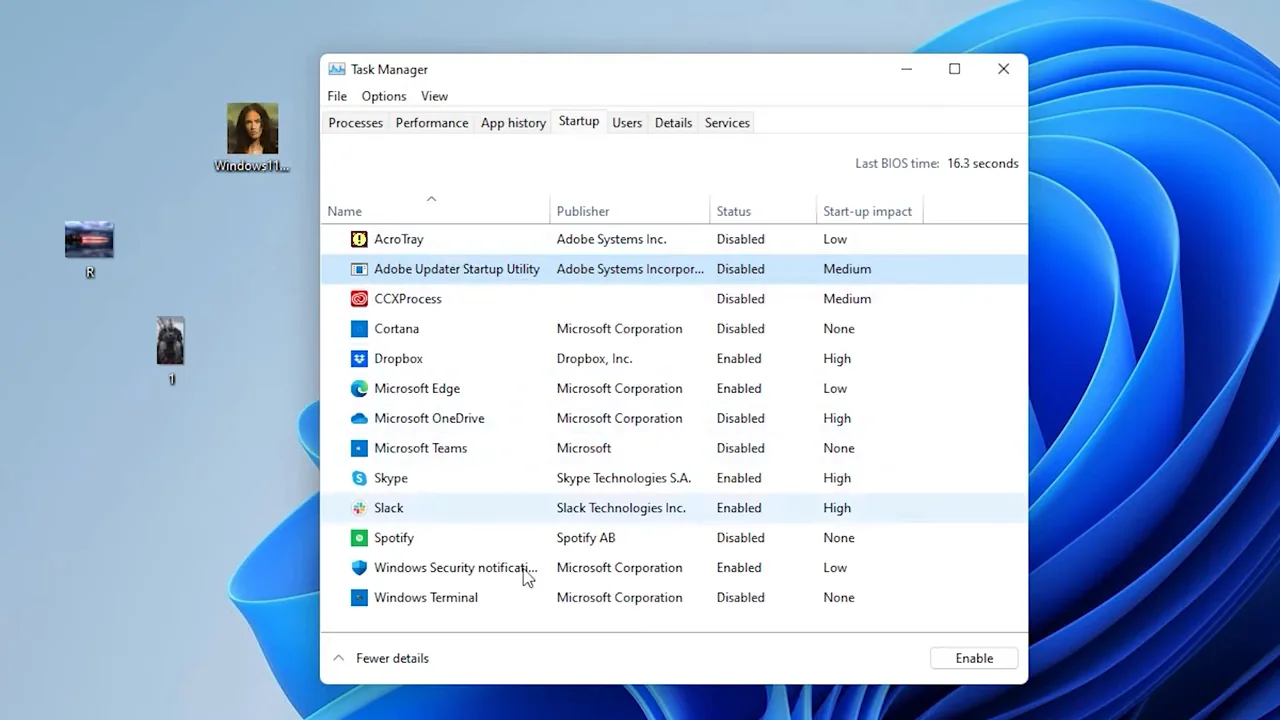
From my video at 3:41: Task Manager → Startup, with the tool listed and enabled.
If it is not in the Startup list after a restart, open the folder and run the program again, and it adds itself.
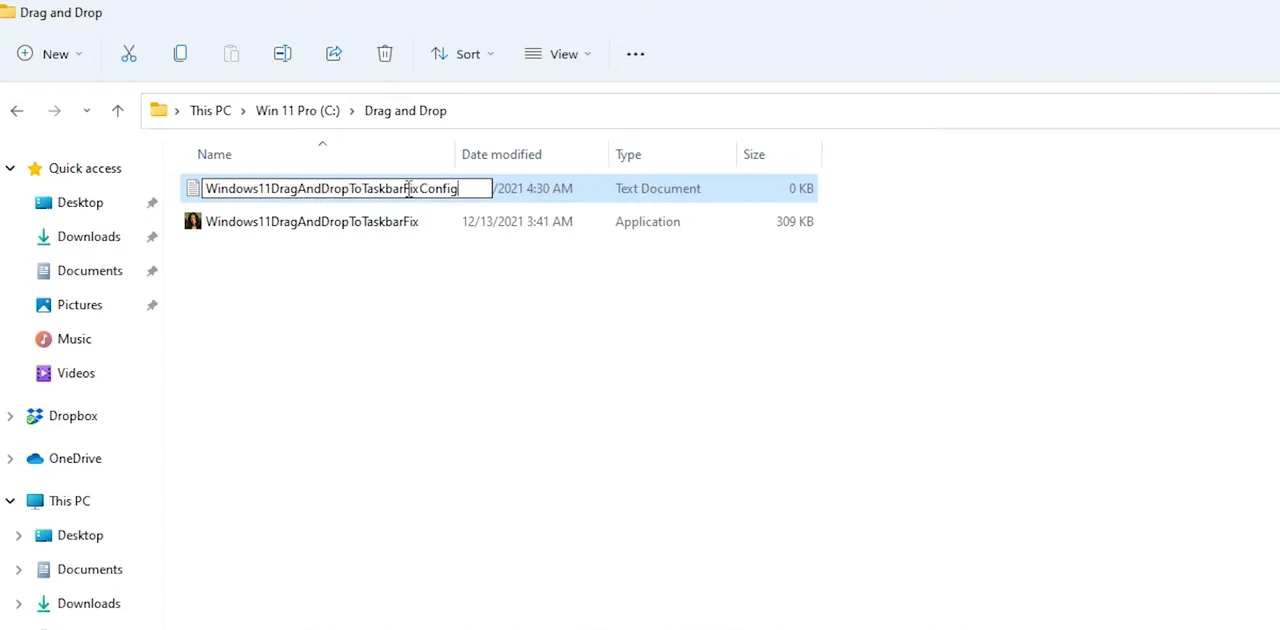
From my video at 3:03: The C:\Drag and Drop folder with the program and Windows11DragAndDropToTaskbarFixConfig.txt.
How to use it
Drag a file from File Explorer and hold it over an app's icon on the taskbar. After a moment, the app comes to the front. Drop the file inside its window.
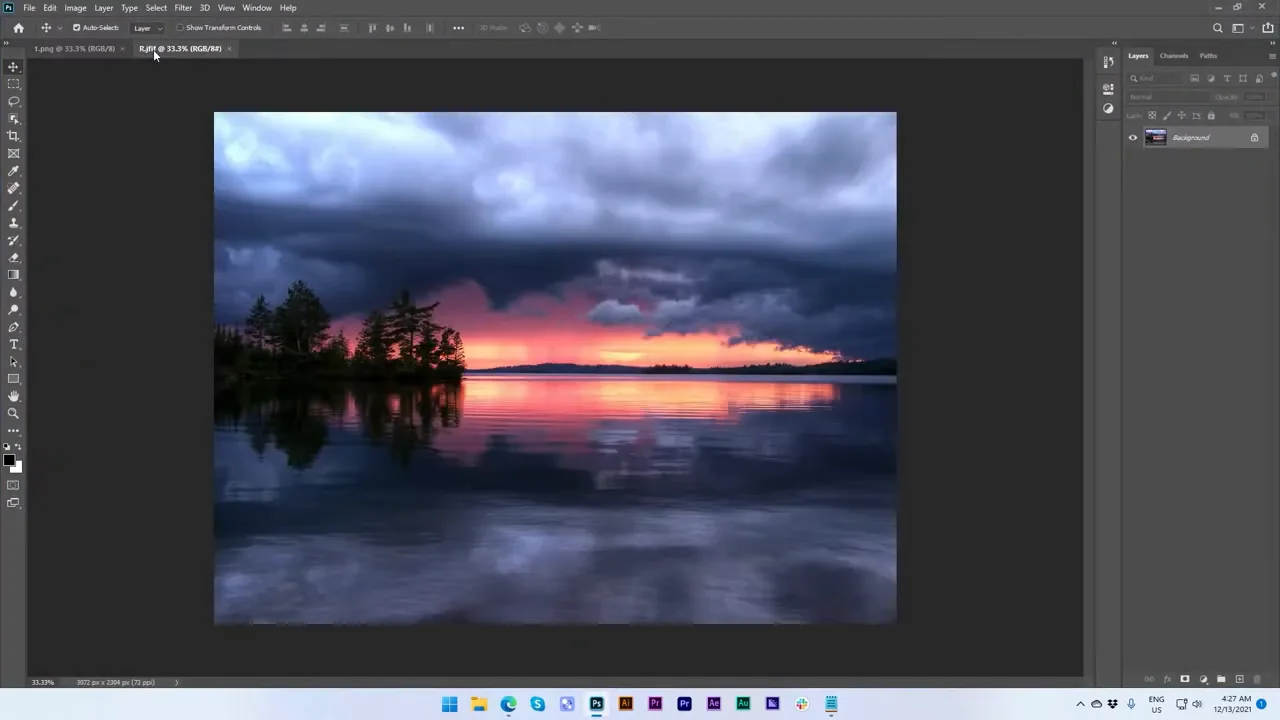
From my video at 1:24: Dragging an image onto the Photoshop button on the taskbar.
How to remove it later
Once you can update to Windows 11 22H2 or newer, you can remove the tool. Open Task Manager, go to Startup apps and disable it. Then close it from the system tray and delete its folder. The built-in feature takes over.
The short version
Check your version with winver first. On 21H2, download the fix from its official GitHub page, put it in its own folder with the config file set to start automatically, and run it once. On 22H2 or newer, you do not need it at all.
Official guidance: Microsoft: Windows release health (supported versions)
Precaution
Windows 11 changes over time. An older third-party compatibility tool may be unnecessary or incompatible with current releases.
Tools & files from this guide
Keep going
