
Two Ways to Drag and Drop Files in Windows 11 Without the Taskbar
Two built-in ways to drag and drop files in Windows 11 without the taskbar, Snap Layouts shortcuts, and when taskbar drag and drop works again.
 Mohammad Shojib AhmedUpdated · 5 min read · 26K views
 1:33 video
Key takeaway
Shrink the folder window or use Snap Layouts to put the folder and app side by side, then drag directly.
The first release of Windows 11 did not let you drag a file onto an app's taskbar icon. If your folder window was maximized, you had no easy way to get a file into another app. If you move files all day, as I do when editing, that hurts.
These two workarounds use only built-in Windows features. They still help today, because dragging between two visible windows is often faster than going through the taskbar anyway.
Quick note: the taskbar method is back
Microsoft restored taskbar drag and drop in Windows 11 version 22H2. Press Windows + R, type winver and press Enter to check your version. If you are on 22H2 or newer, read my guide on using taskbar drag and drop. If you are on 21H2, or simply prefer working with two windows, the methods below work on every version.
Method 1: Restore the folder window
A maximized window covers the whole screen, so there is nothing visible to drop into. Making it smaller uncovers the app behind it.
- Open the folder with your file.
- Click the restore button, the middle button at the top right, so the window is no longer full screen.
- Drag the edges of the window to make it smaller if you need more room.
- Drag the file straight onto the open app window behind it.
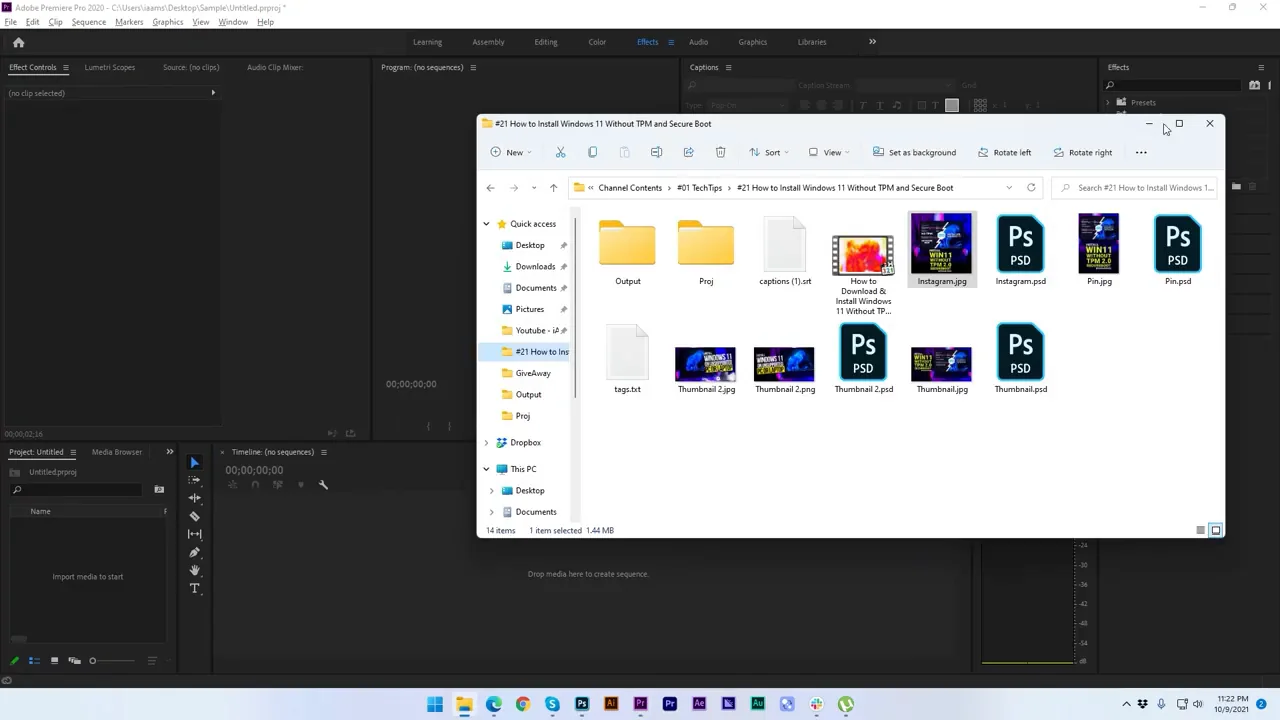
From my video at 0:48: The folder window restored, so it sits on top of the app.
Method 2: Snap the windows side by side
Snap Layouts is a Windows 11 feature that arranges windows in neat columns or grids for you. It is the cleanest way to see a folder and an app at the same time.
- Open the folder and the app you want to drop into.
- Hover over the folder's maximize button for a second until Snap Layouts appears.
- Pick a two-column layout and place the folder on one side.
- Windows shows your other open windows. Choose the app for the other side.
- Drag files from the folder into the app.
Tip: Press Windows + Left or Windows + Right to snap a window to half the screen instantly. Windows + Z opens the Snap Layouts menu for the active window.
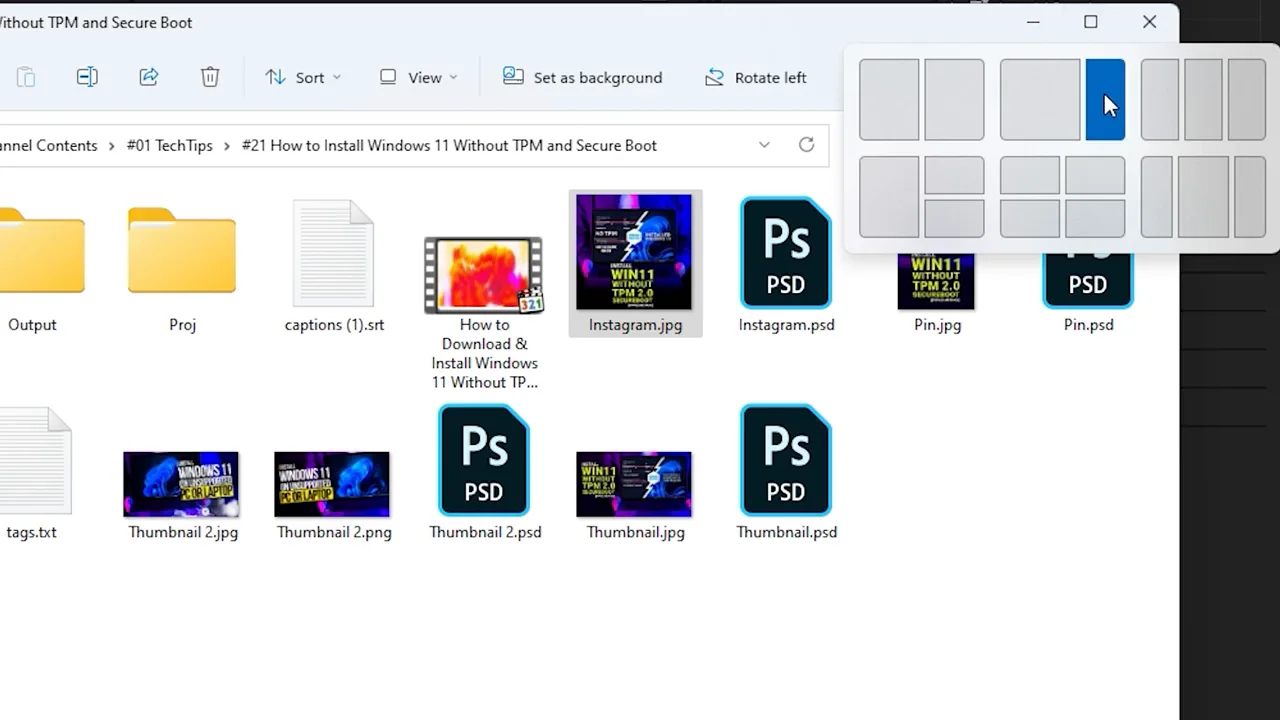
From my video at 0:52: Snap layouts on the maximize button.
Which method to use
- Use Method 1 for a quick one-off drag, when you just need to move one file.
- Use Method 2 when you will move many files, such as importing footage into an editor or attaching several images to an email.
- On a small laptop screen, try a layout with the folder taking one third and the app taking two thirds, so the app still has space to work in.
Two more built-in shortcuts
- Copy and paste: select the file, press Ctrl + C, switch to the app and press Ctrl + V. Many apps, including browsers and chat apps, accept pasted files.
- The app's own Open or Import button: slower, but it always works, and many apps remember the last folder you used.
App refuses the file? It may not support that file type, or it may be running as administrator. Windows blocks dragging from a normal File Explorer window into an app running as administrator. Use the app’s Open or Import button instead.
The short version
Restore the folder window or snap the folder and app side by side with Snap Layouts, then drag directly between them. If you are on Windows 11 22H2 or newer, taskbar drag and drop also works again.
Precaution
These workarounds reflect older Windows 11 behavior; check your current Windows build before following outdated instructions.
Keep going
