
How to Fix Premiere Pro 2026 Lagging After Update
Premiere Pro 2026 timeline freezing after an update? Follow my real-world troubleshooting example, with screenshots from version 26.5.2.
 Mohammad Shojib AhmedUpdated · 5 min read
 Play tutorial
Key takeaway
Premiere Pro can start lagging after an update even in a simple editing project. This guide shows what I tested, the result, and how to check whether the workaround helps on your system.
If Adobe Premiere Pro 2026 is lagging after an update, the timeline may look frozen even when the timecode keeps moving. I ran into this problem in Premiere Pro 26.5.2 (Build 5) on Windows, and it made even a basic podcast-editing project difficult to work on.
In my case, changing one General preference fixed the interface lag. Here is the exact workaround shown in my tutorial, using real screenshots from the recording. It is not a guaranteed solution for every playback problem.
What was happening in my project?
After the Premiere Pro update, the preview picture could freeze while the timecode continued. This happened during straightforward editing rather than an effects-heavy export. It felt like a timeline or interface problem, not simply slow footage decoding.
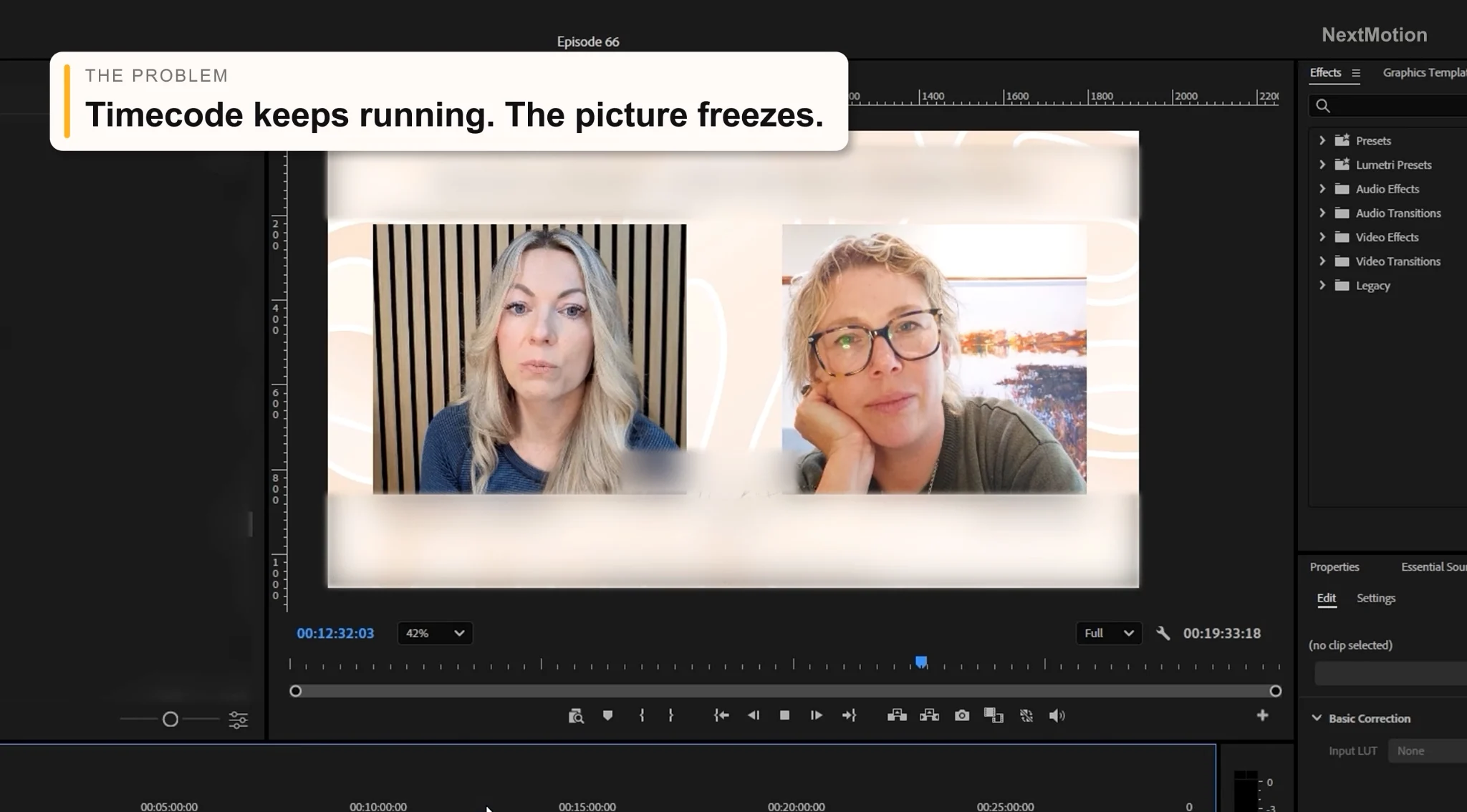
The problem shown in my recording: the picture was stuck even as the playback timecode kept moving.
Step 1: Confirm your Premiere Pro version
Open Help → About Premiere Pro on Windows to check the installed release. My demonstration uses version 26.5.2 (Build 5). Your menu labels may look different in another version.
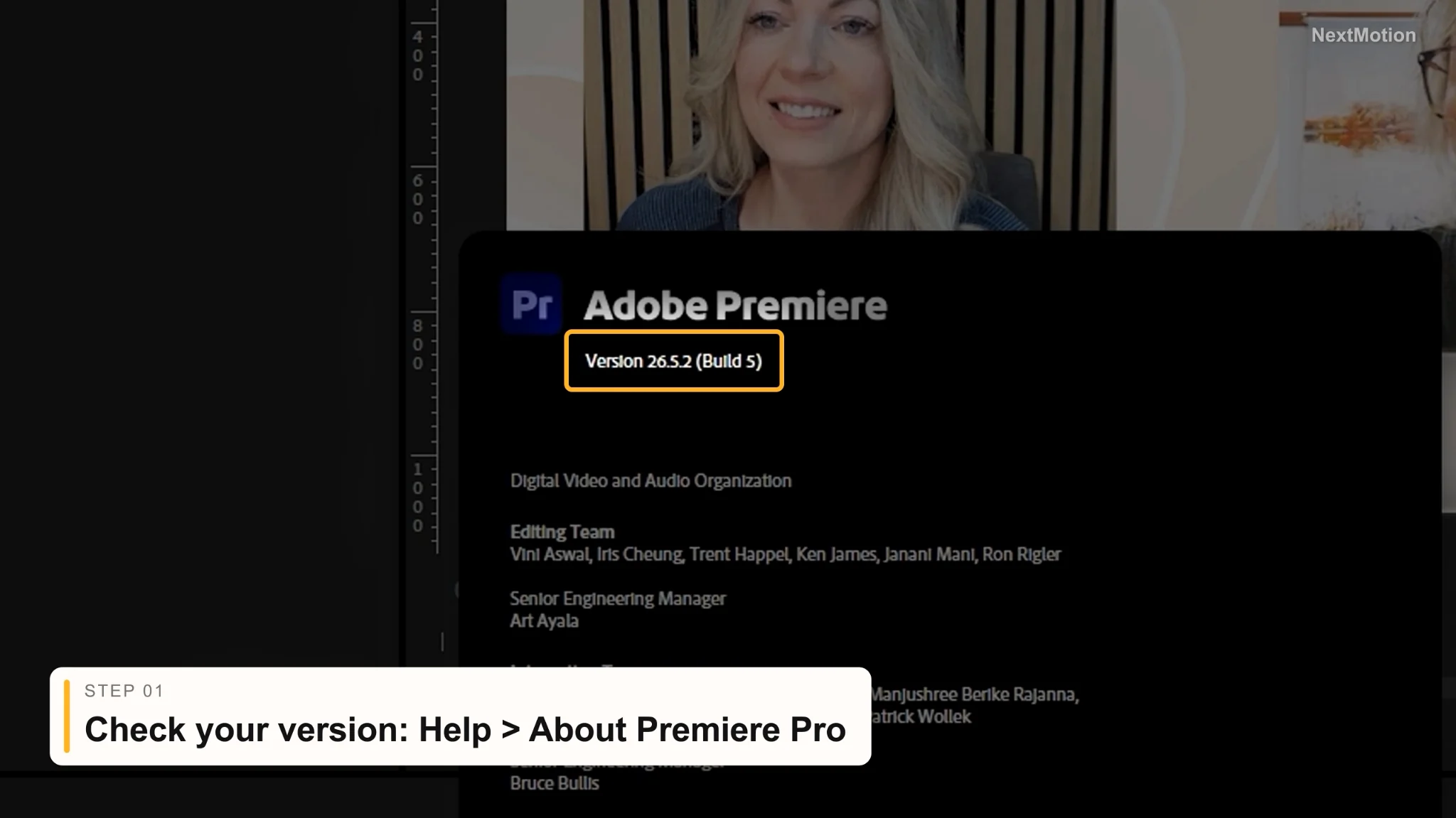
My installed Adobe Premiere Pro release: 26.5.2 (Build 5).
Step 2: Open General preferences
With Premiere Pro open, choose Edit → Preferences → General. This is the Windows menu path I follow in the video.
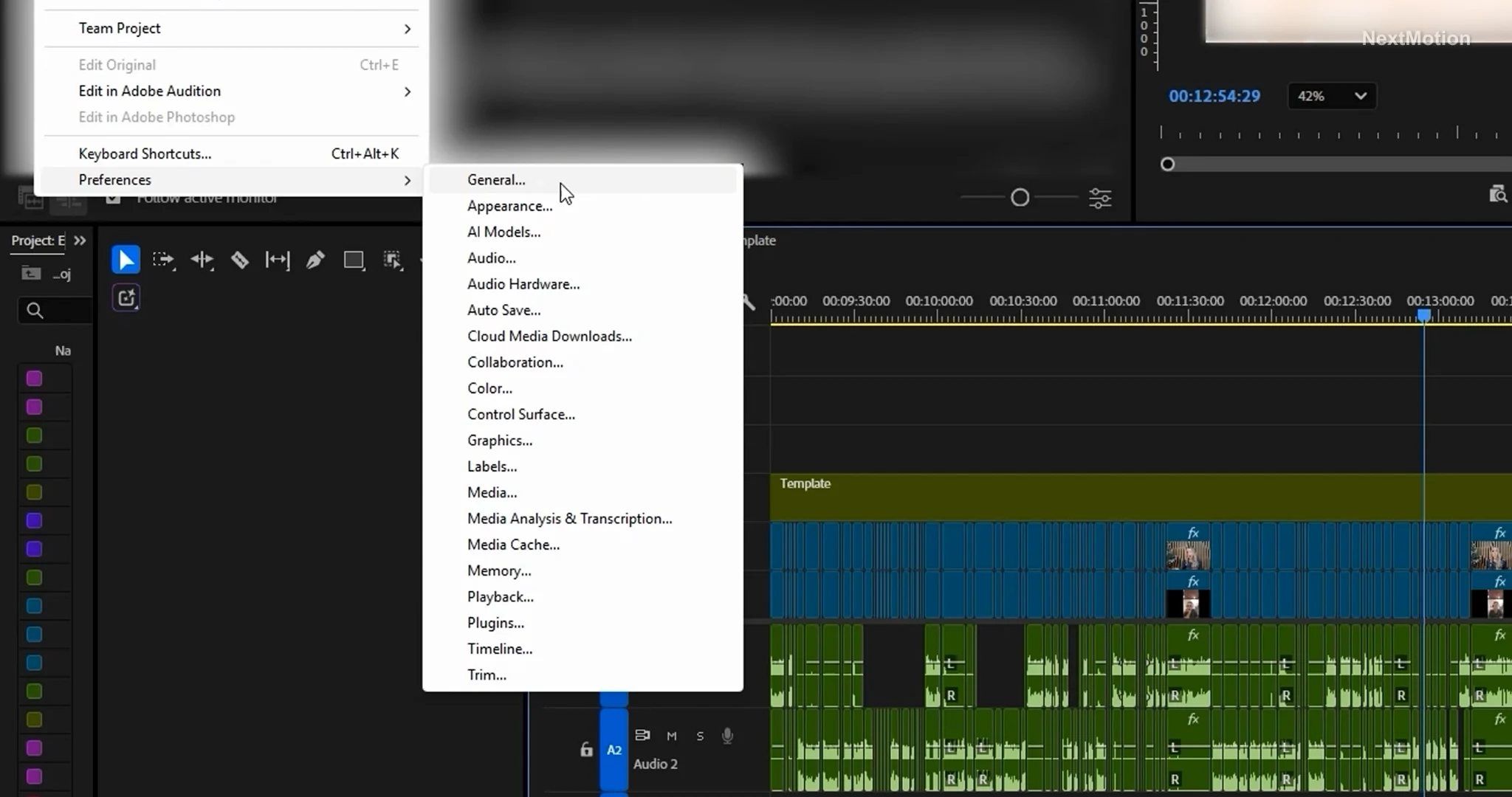
Open the General page under Edit → Preferences.
Step 3: Turn off GPU accelerated UI rendering
Scroll through the General settings and find GPU accelerated UI rendering (restart required). It was checked on my system. Uncheck the box.
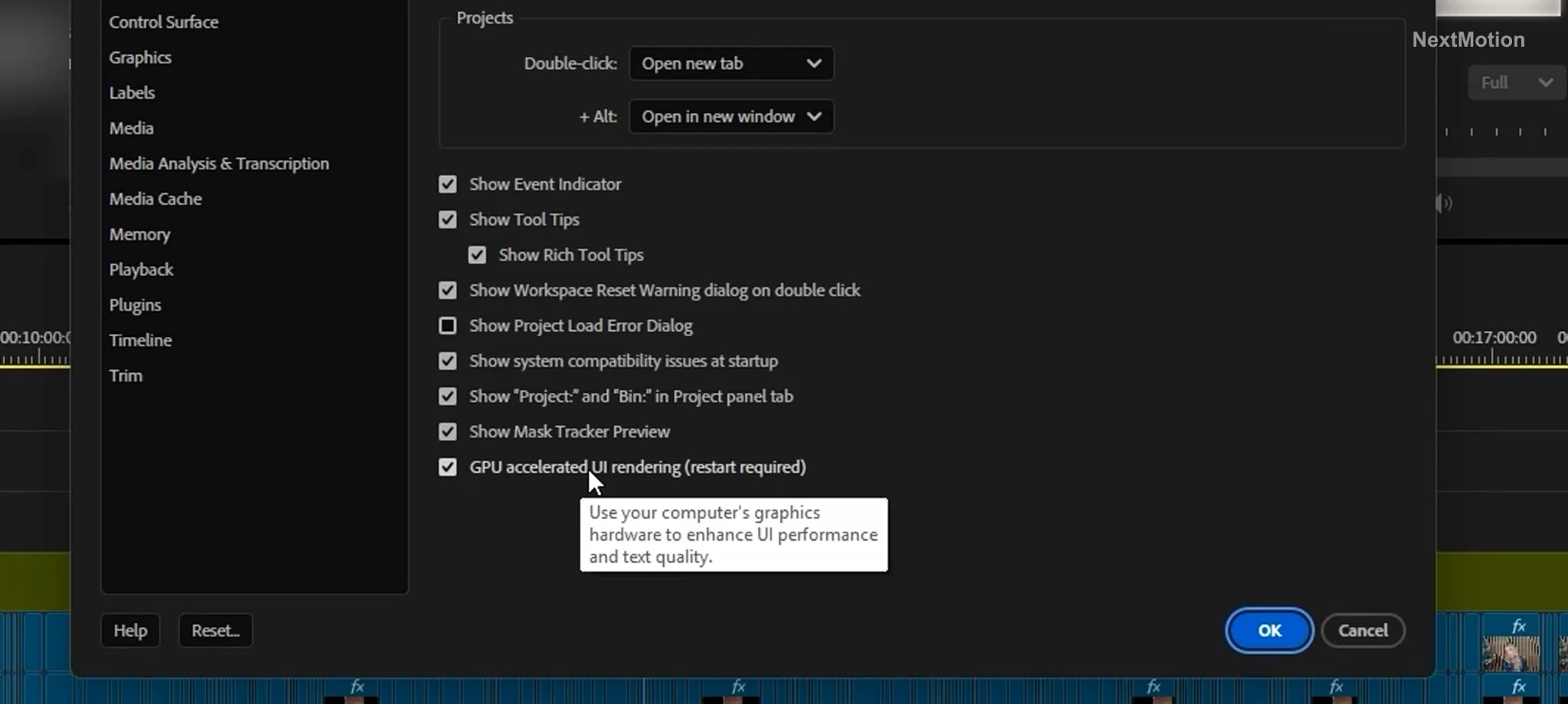
Before: GPU accelerated UI rendering is enabled.
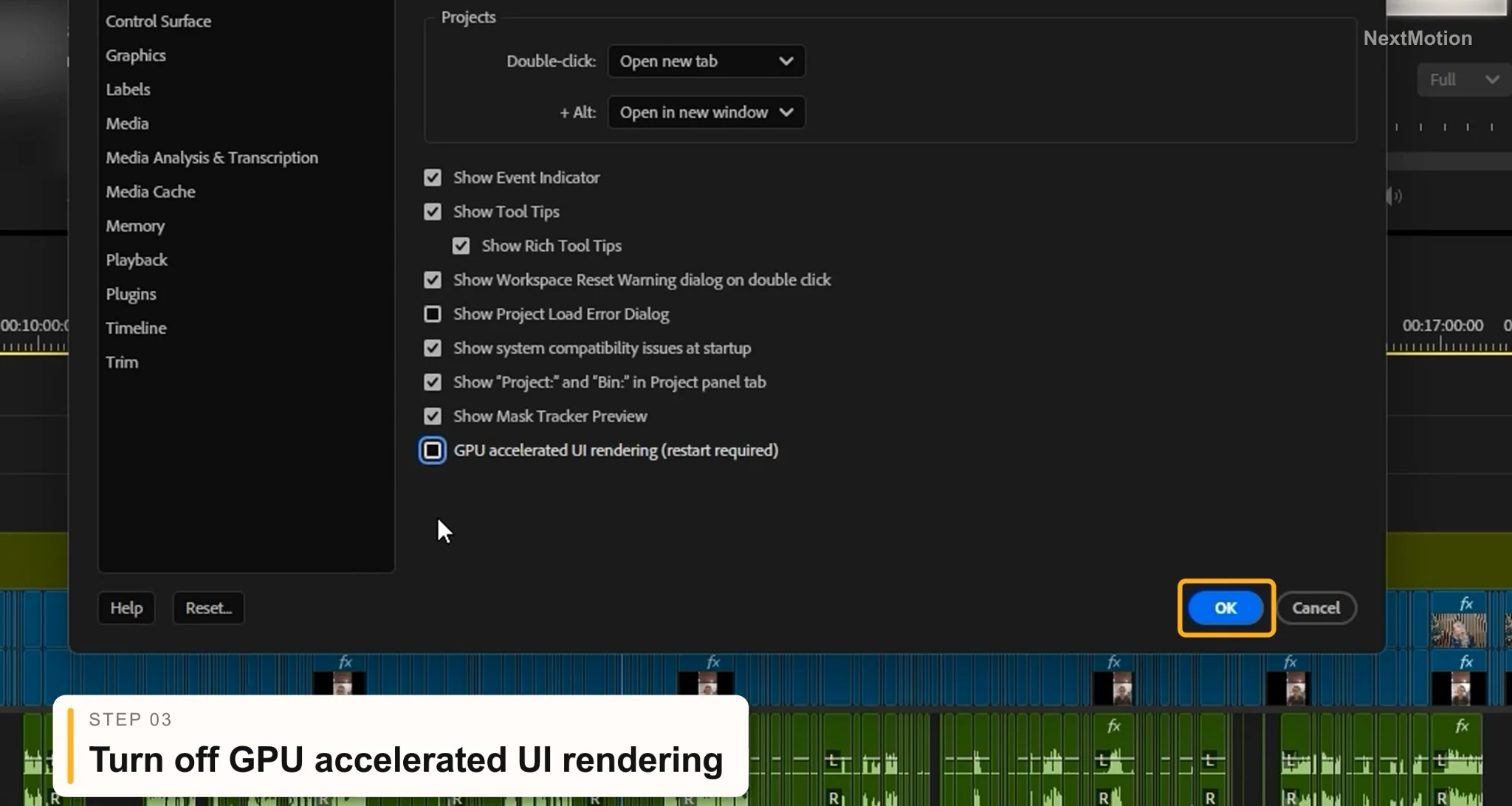
After: the GPU accelerated UI rendering checkbox is cleared.
This option controls how graphics hardware draws parts of the Premiere Pro interface. It is not the same as turning off GPU acceleration for video processing in Project Settings, and changing it does not directly change your export resolution or bitrate.
Step 4: Click OK and restart Premiere Pro
Click OK to save the change. Close Premiere Pro completely and reopen it; the preference does not fully apply until after a restart.
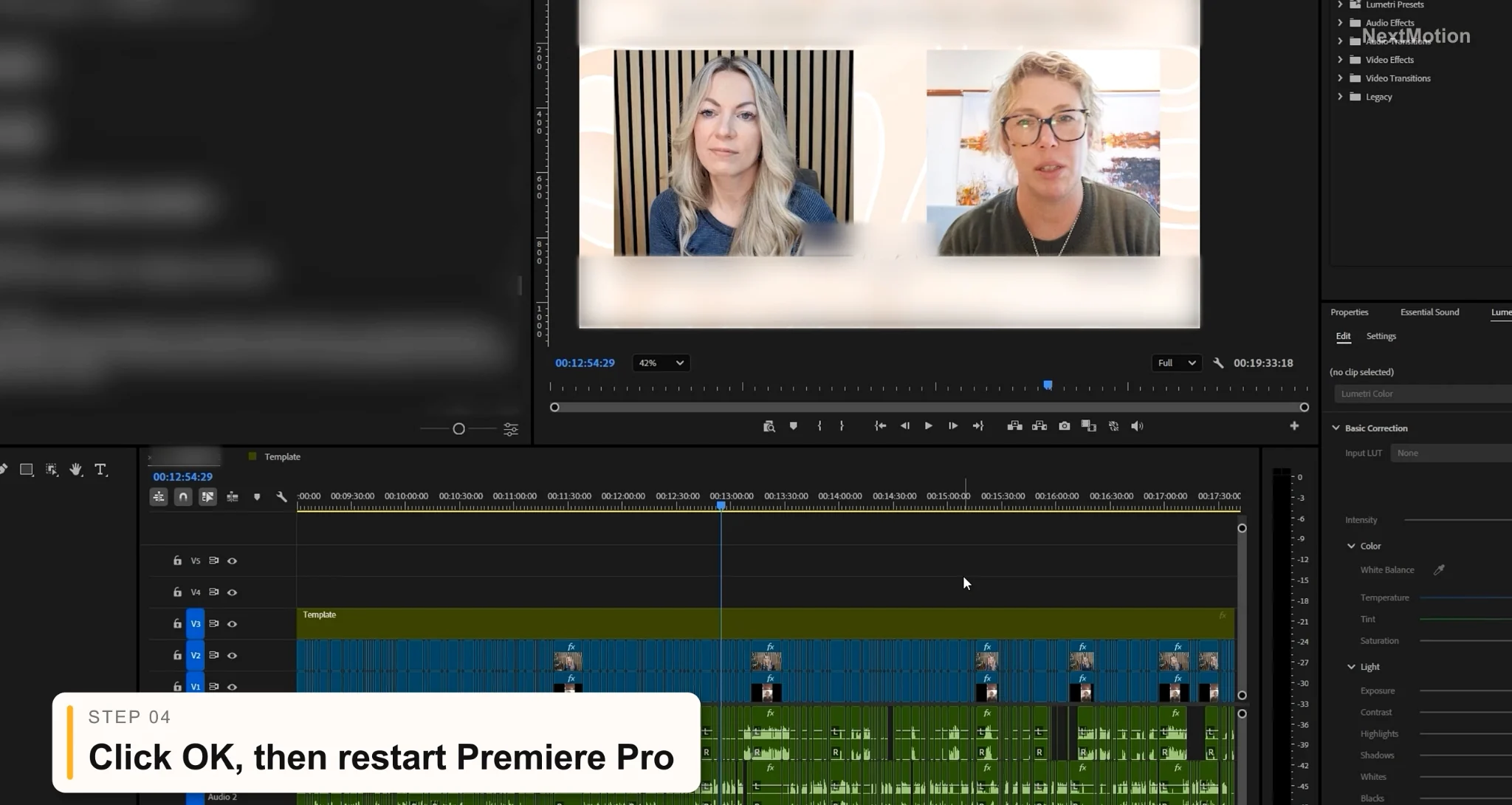
Apply the General preference change, close the app, and launch it again.
Step 5: Open the project and test playback
Open the project that was lagging and try the same action again: play the sequence, move the playhead, and scrub across the timeline. After I restarted, the timeline and preview responded smoothly again in my demonstration.
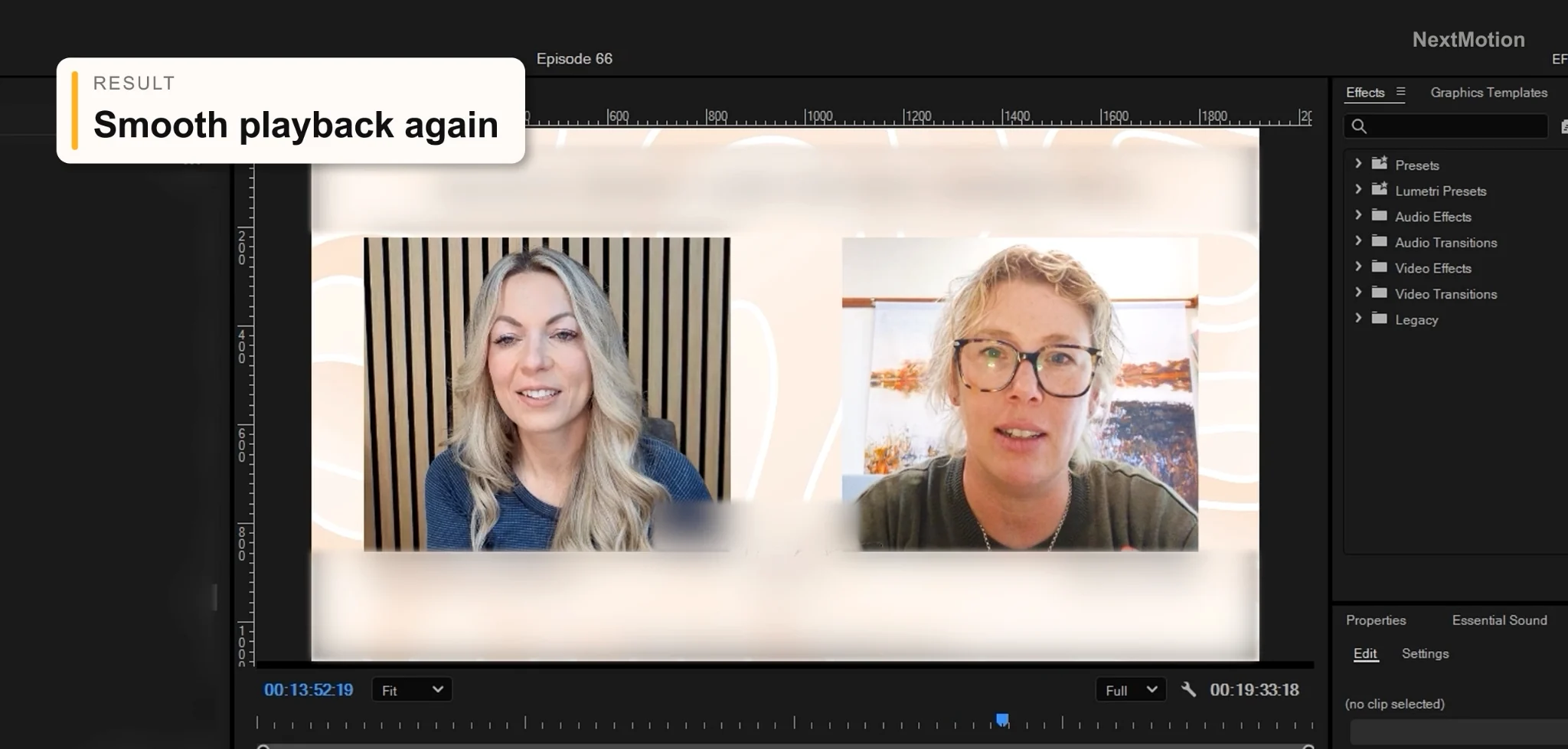
Result in my project: playback and interface response returned to normal.
Why can this fix Premiere Pro lag?
GPU accelerated UI rendering affects the drawing of the application's controls and panels. If the graphics-assisted interface is not updating correctly, switching off that preference may help the timeline and preview display respond again. Other editors have described similar stuck-playhead behavior in Adobe's community, but the underlying cause can vary by system and version.
If your video itself stutters because of a demanding codec, slow storage, or heavy effects, this interface preference may not help. Those are separate performance problems.
What if Premiere Pro still lags?
- First confirm you fully restarted Premiere Pro after changing the checkbox.
- Try the same clip in another project to help determine whether the problem is project-specific.
- Check Adobe's known and fixed issues for your installed version.
- If the change does not help or causes interface drawing problems, return to General preferences and re-enable the original setting.
Frequently asked questions
Why does the timecode move while the Premiere Pro picture is frozen?
The playback controls and image display may not always update together. This guide covers one interface-rendering workaround that solved that symptom in my project; other causes are possible.
Does this disable GPU rendering for video exports?
No. The checkbox is specifically for UI rendering. It is separate from the GPU renderer used for many video effects and exports.
Will this fix Premiere Pro 2026 playback lag on every PC?
No. I tested this on Premiere Pro 26.5.2 (Build 5). Results depend on the system, graphics driver, project, and underlying problem.
Precaution
Save your project before changing application preferences. If turning off GPU accelerated UI rendering makes no difference or creates visual artifacts, restore the setting and restart again. This is a reversible workaround, not a confirmed fix for every Premiere Pro performance issue.
Keep going

