
I Lost My Windows Install Converting MBR to GPT with a Third-Party Tool
What happened when a free partition tool broke my Windows install during an MBR to GPT conversion, why it fails, how to back up and the safe method instead.
 Mohammad Shojib AhmedUpdated · 6 min read · 376 views
 2:41 video
Key takeaway
Back up first, and use Microsoft’s own MBR2GPT tool instead of third-party converters.
After my Secure Boot video, viewers asked if there was a way to convert a drive from MBR to GPT without reinstalling Windows. One suggested a free partition tool, so I tried it. It broke my Windows install, and I had to reinstall from scratch.
I am sharing exactly what happened so you can avoid the same mistake, and so you know the safe method that does work.
A quick reminder: what MBR and GPT are
MBR and GPT are two ways of mapping how a drive is divided. MBR is the old style. GPT is the modern one, and it is needed for UEFI and Secure Boot, which Windows 11 asks for. Converting the system drive changes that map and how the PC starts Windows, so it has to be done carefully.
What happened
- I installed a free partition manager (Paragon Partition Manager 17 Community Edition) and selected the SSD with Windows on it.
- I chose Convert to GPT, and the tool asked me to restart.
- After the restart, Windows showed "Press Enter to try again". Pressing Enter did nothing.
- F1 recovery and F8 startup settings did not work either. The drive would not boot, and I had to reinstall Windows.
From my video at 0:37: The third-party tool I used: Paragon Partition Manager 17 CE.
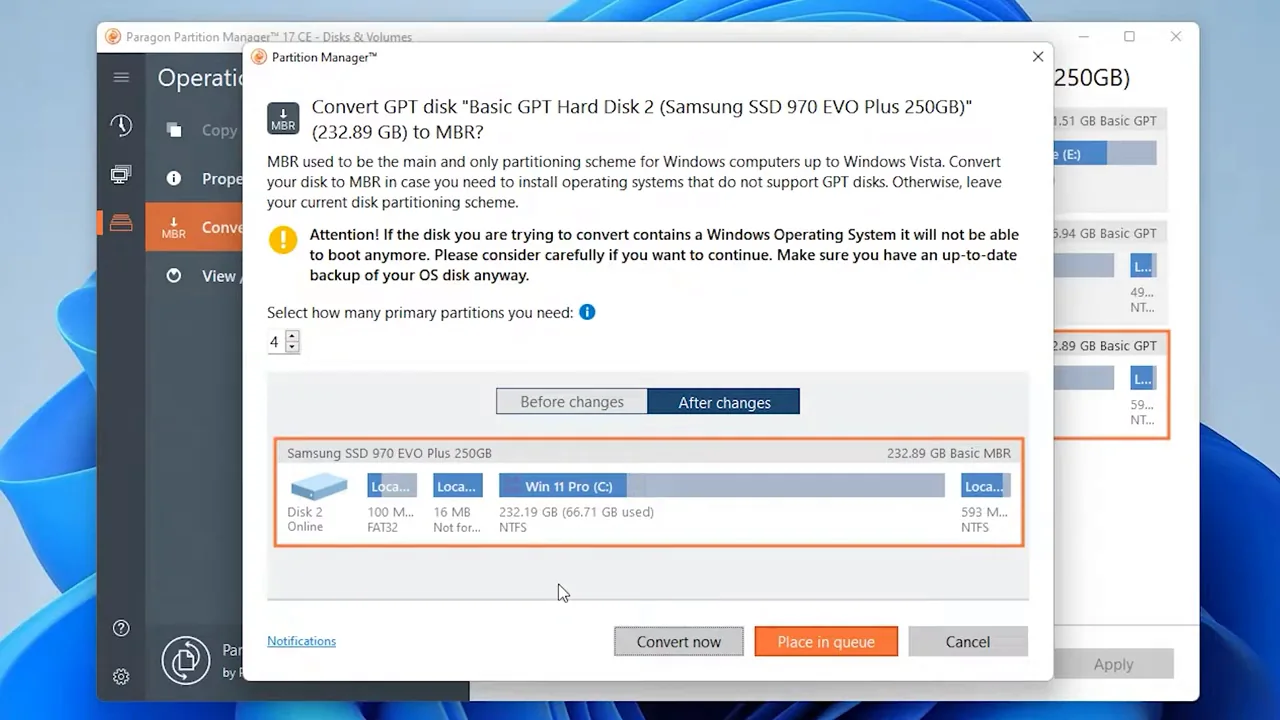
From my video at 0:57: The conversion dialog in the tool.
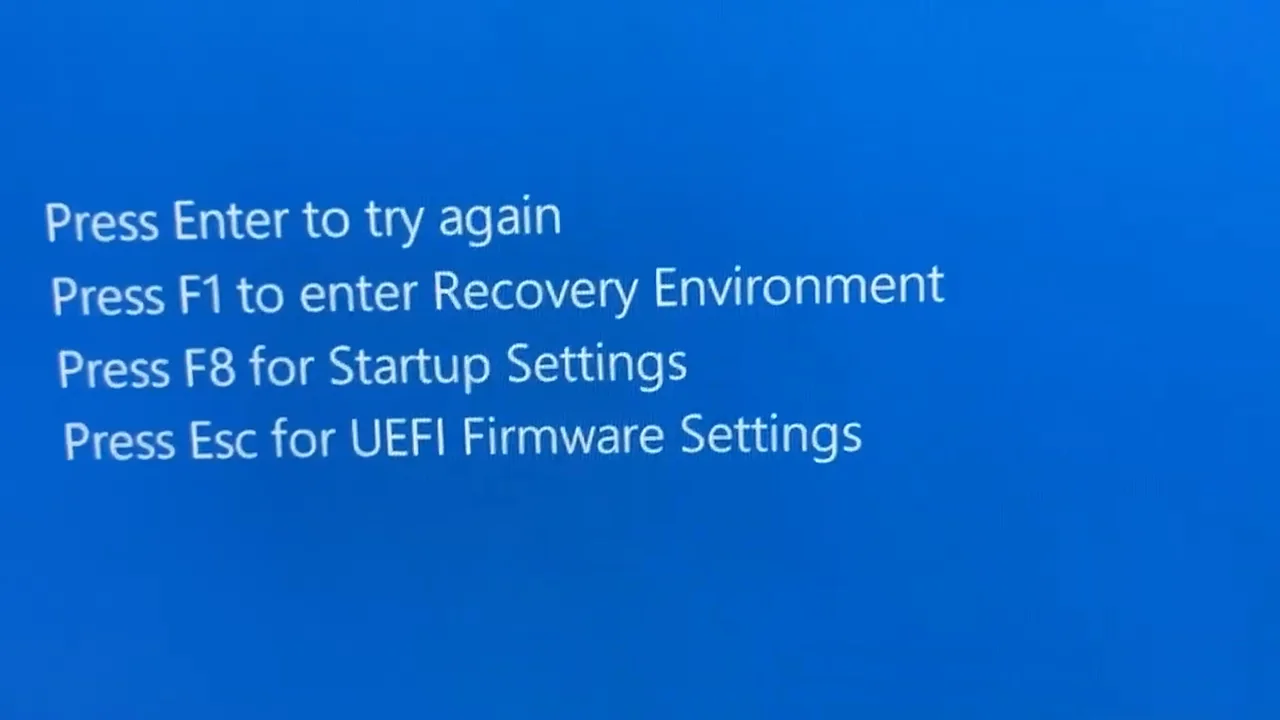
From my video at 1:17: After the restart, Windows would not start and showed this recovery screen.
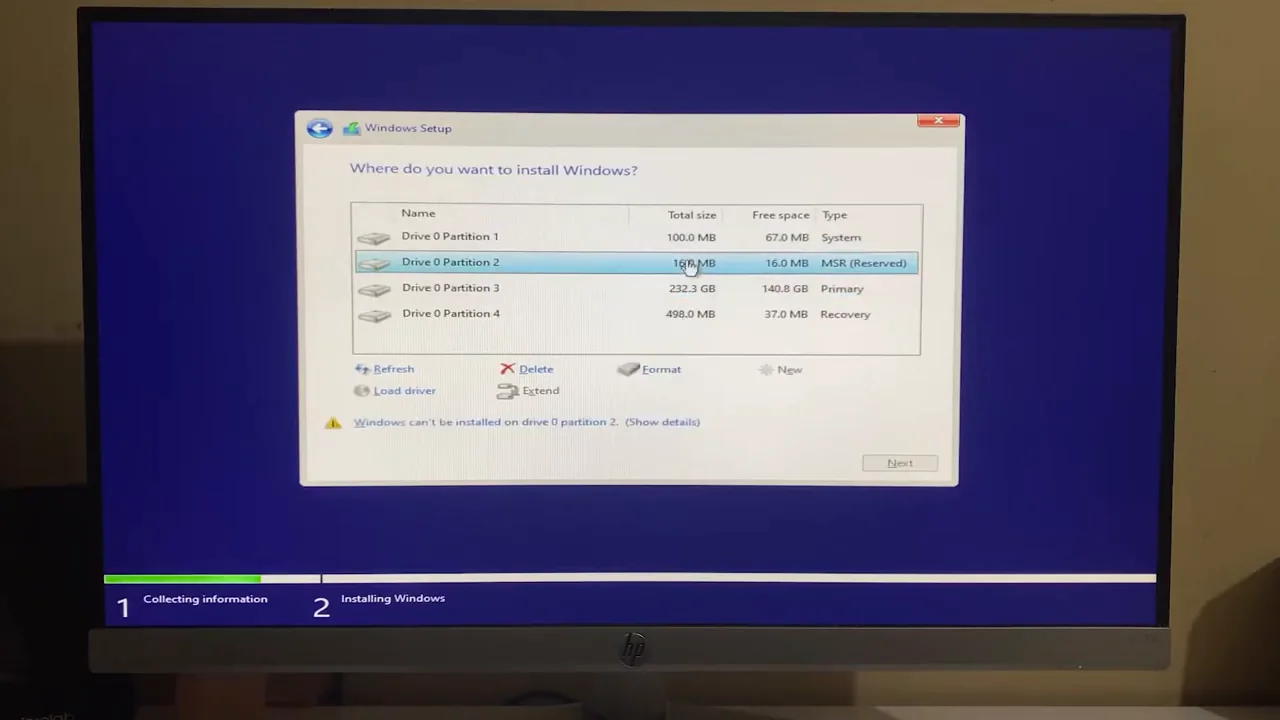
From my video at 1:43: In the end I had to reinstall Windows.
Why it probably failed
I did not diagnose the failure at the time, so this part is my best explanation, not something I confirmed. Converting a system drive is not only about changing the drive map. Windows also needs a small EFI system partition with the right boot files, and the BIOS has to be switched from Legacy to UEFI at the right moment. If any part of that chain is missing or done in the wrong order, the PC cannot find a way to start Windows.
Third-party tools try to handle all of this automatically, and on many PCs they succeed. But every system is set up a little differently: recovery partitions from the PC maker, extra partitions from older installs, different BIOS options. On my PC, something in that chain did not line up.
The lesson
- Always back up your SSD or HDD before changing partitions. A full image backup takes minutes to start and saves days.
- Every PC is configured differently. A method that worked on someone else's machine can fail on yours.
- Changing a BIOS setting like Secure Boot is easy to undo. Changing a drive's partition style is not.
How to back up before any partition change
- Connect an external drive with enough free space for your whole Windows drive.
- Use a full-disk imaging tool to create an image of the Windows drive. Many free backup tools offer this, and some drive makers include one with their SSDs.
- Create the tool's recovery USB, so you can restore the image even if Windows will not start.
- Copy your most important files separately as well, to a cloud folder or another drive.
The safe way to convert
Windows includes Microsoft's own tool, MBR2GPT. It checks the drive first with a validate command and only converts if everything is in order. It creates the EFI partition Windows needs, and it does not delete your data. I have used it without problems since this happened, and I walk through it step by step in how to convert MBR to GPT without losing data.
If this already happened to you
These are things to try, not guaranteed fixes. If your files matter, do the last one first.
- Go into the BIOS and switch between UEFI and Legacy or CSM mode. If the conversion half-worked, the drive may start in the other mode.
- Boot from a Windows installation USB, choose Repair your computer and try Startup Repair.
- If you need your files, do not reinstall onto the same drive yet. Connect it to another PC or boot a recovery tool and copy the files off first.
Common questions
Does converting MBR to GPT wipe Windows?
Not with Microsoft’s MBR2GPT on a supported drive. My install broke during a third-party tool’s conversion. Here is the safe method.
Can I recover my files after a failed conversion?
Often, yes, as long as nothing new is written to the drive. Connect it to another PC or boot a recovery tool and copy the files off first.
The short version
A third-party partition tool broke my Windows install while converting MBR to GPT. Back up before any partition change, and use Microsoft's built-in MBR2GPT instead. It checks the drive first and converts without losing data.
Precaution
This is an account of a past experience, not a recommendation to repeat unsafe partition changes. Keep backups and use supported conversion procedures.
Keep going
