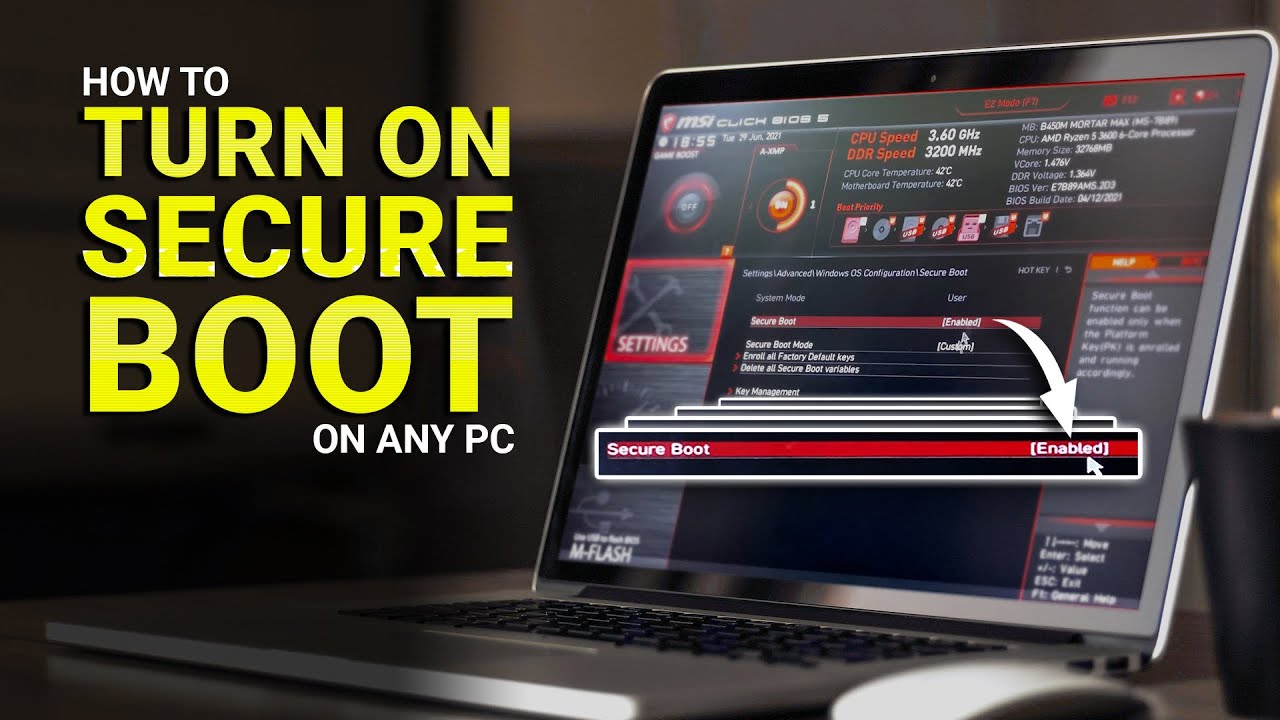
How to Turn Off Secure Boot in the BIOS
What Secure Boot does, how to turn it off on MSI with CSM mode and on ASUS, Gigabyte and ASRock boards, and what to check before and after.
 Mohammad Shojib AhmedUpdated · 6 min read · 76K views
 1:42 video
Key takeaway
On a current Windows PC, turn off the Secure Boot option itself and leave the boot mode on UEFI. The UEFI-to-CSM switch I used in the video also turns Secure Boot off, but it can stop a UEFI/GPT Windows install from starting. Have your BitLocker key ready.
Sometimes you need Secure Boot off. Maybe you want to start an older Windows installer, boot a Linux tool from a USB stick or use an older graphics card. In my video I did it on an MSI motherboard by switching the BIOS from UEFI to CSM mode, which turns Secure Boot off in one step. On a current Windows 11 PC there is a safer way: turn off only the Secure Boot option and keep UEFI.
In this guide I explain what Secure Boot actually does, how to turn it off on MSI boards, where the setting is on other brands, and what to keep in mind before you change it.
What Secure Boot does, in plain words
When your PC starts, a few small programs run before Windows: the firmware, the boot loader and some drivers. Secure Boot checks that each of these is signed, which means it comes from a trusted maker and has not been changed. If something unsigned tries to load, Secure Boot blocks it.
That protects you from a type of malware that hides in the startup process. It also blocks some legitimate older tools and operating systems that were never signed. That is why you sometimes need to switch it off for a while.
Before you turn it off
- Windows 11 and some games need it. Games with anti-cheat, such as Valorant, may refuse to start while Secure Boot is off.
- BitLocker may ask for your recovery key. If your drive is encrypted with BitLocker, changing Secure Boot can make Windows ask for the recovery key at the next start. Find your key first in your Microsoft account, or suspend BitLocker before the change.
- Take a photo of the screen before you change anything, so you can set it back exactly as it was.
Steps on an MSI motherboard
Recommended: turn off Secure Boot only
- Restart and keep pressing Delete to open the BIOS. Click Advanced, or press F7, if you are in EZ Mode.
- Go to Settings, then Advanced, then Windows OS Configuration, then Secure Boot.
- Set Secure Boot to Disabled. Leave BIOS UEFI/CSM Mode on UEFI.
- Press F10 and choose Yes to save and restart.
This keeps the boot mode Windows 11 is installed in, so Windows starts as before. Menu names can differ slightly between MSI BIOS versions.
What I did in the video: UEFI to CSM
In the video, on my older MSI setup, I changed BIOS UEFI/CSM Mode from UEFI to CSM (same Windows OS Configuration menu) and saved with F10. CSM turns Secure Boot off automatically, and the BIOS then shows Legacy + UEFI. Do not copy this on a current Windows 11 PC unless you know Windows is installed in Legacy mode: if Windows is on a GPT drive in UEFI mode, switching to CSM can stop it from starting.
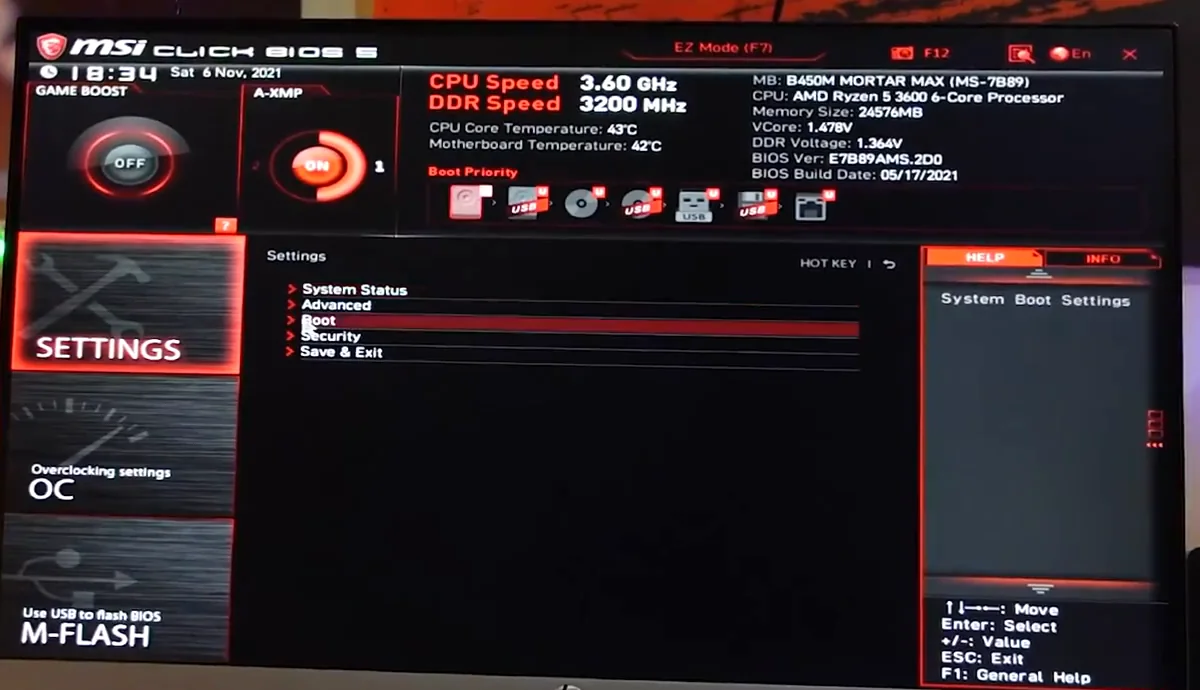
From my video at 0:36: MSI Click BIOS 5 Advanced mode, Settings menu.
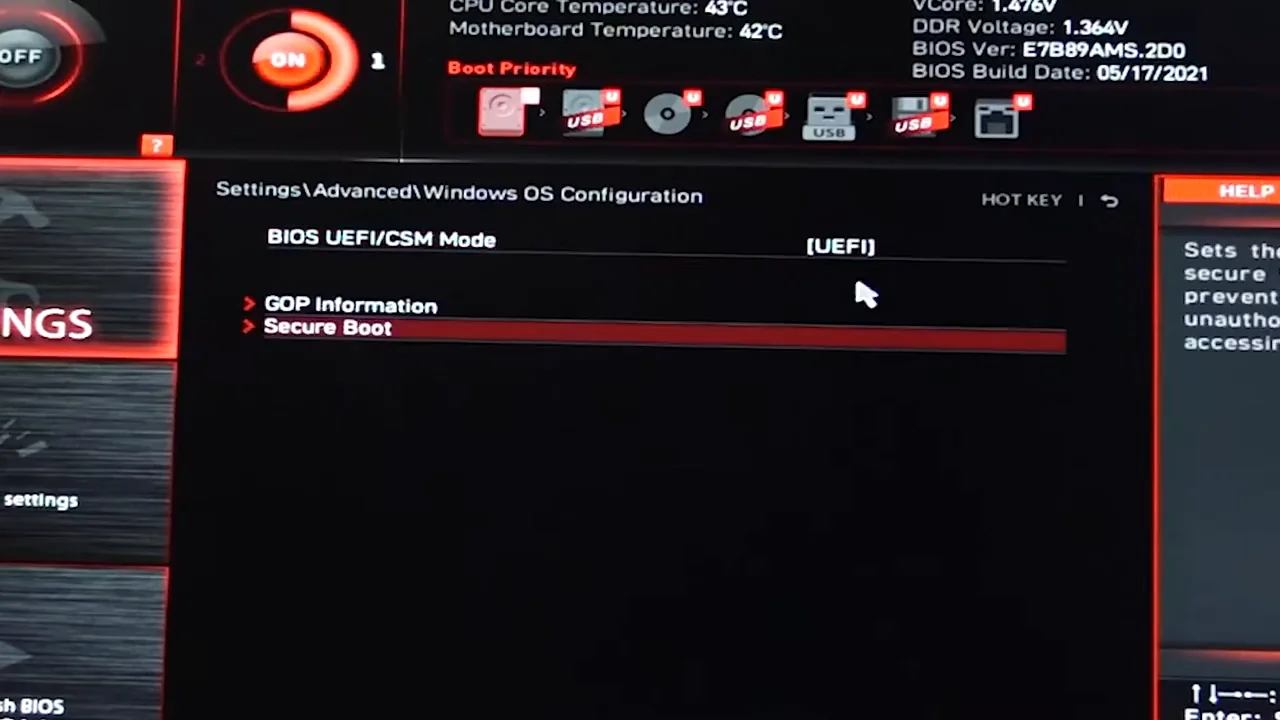
From my video at 0:40: Windows OS Configuration before the change: BIOS UEFI/CSM Mode is UEFI and the Secure Boot entry is available.
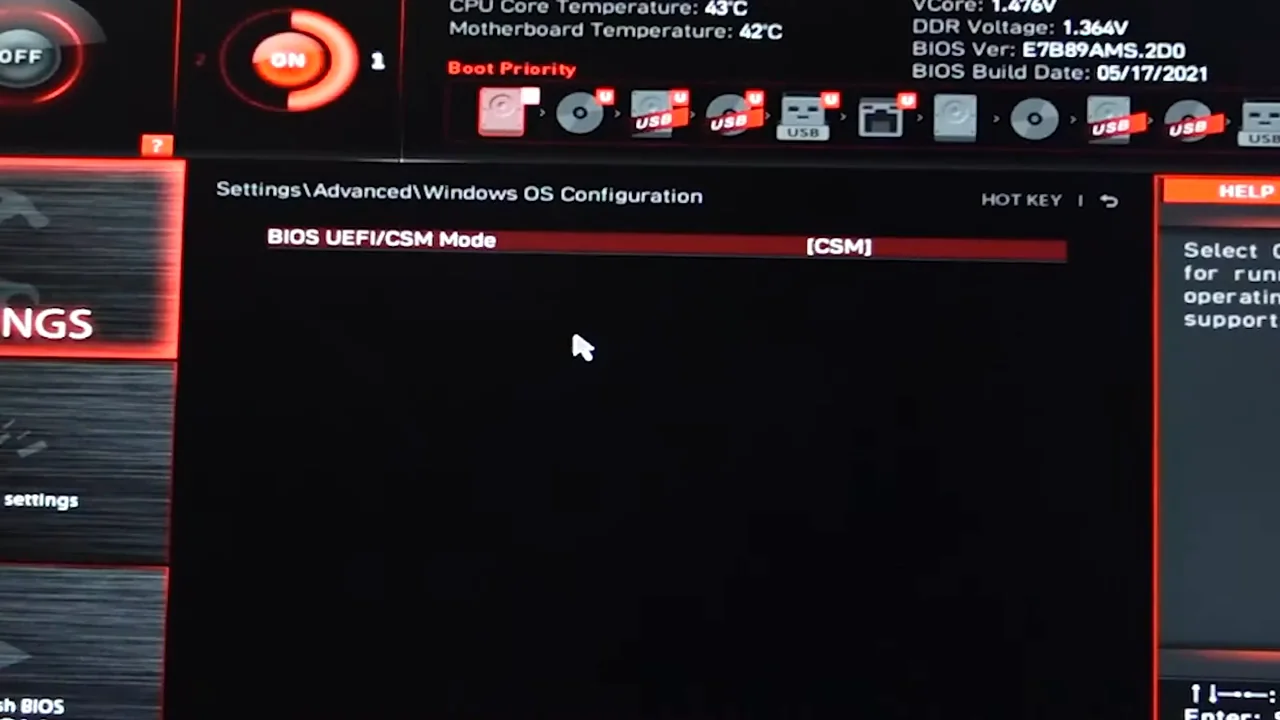
From my video at 0:44: After switching to CSM, the Secure Boot entry is gone from this page.
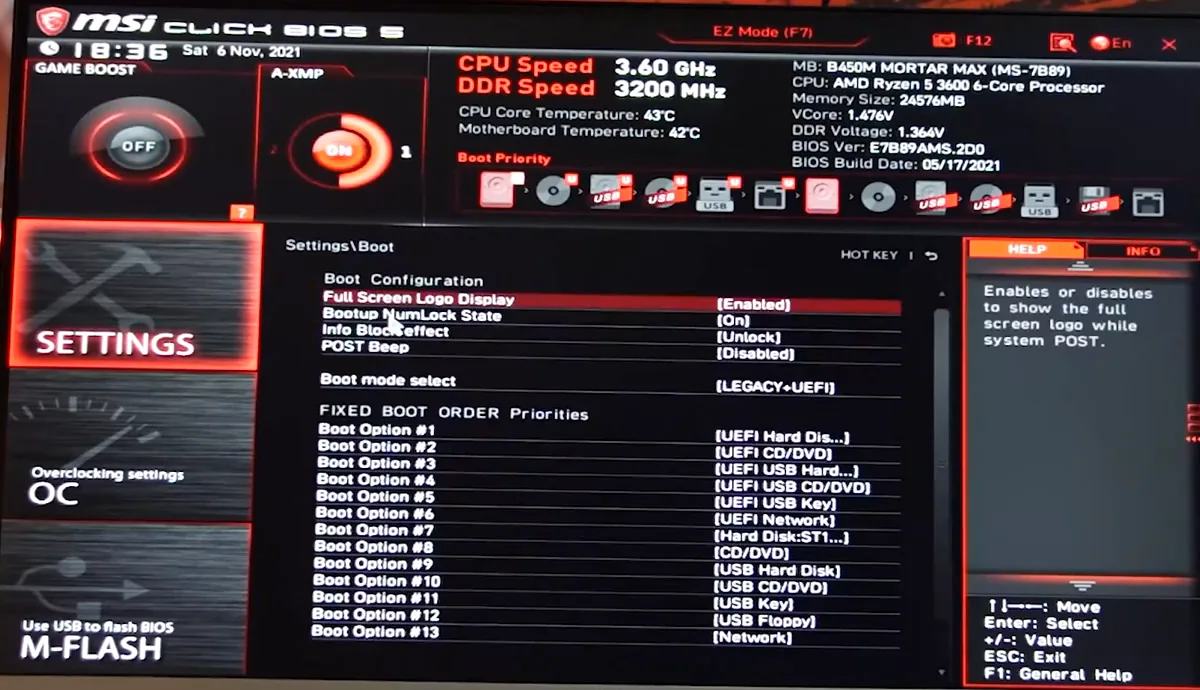
From my video at 1:13: Settings → Boot now shows Boot mode select: LEGACY+UEFI.
CSM stands for Compatibility Support Module. It lets the board start older, non-UEFI systems. Secure Boot only works in pure UEFI mode, so switching to CSM turns it off automatically. The catch: a Windows install that starts in UEFI mode may not start in CSM mode.
Other motherboards
On most other boards you can switch Secure Boot off directly, without changing to CSM. The menu names vary a little:
- ASUS: Boot, then Secure Boot. Set OS Type to Other OS.
- Gigabyte: Boot, then Secure Boot, and set it to Disabled.
- ASRock: Security, then Secure Boot, and set it to Disabled.
- Laptops and prebuilt PCs: usually under a Security or Boot tab in the BIOS, named Secure Boot.
If the option is grayed out, some laptops require a BIOS supervisor or administrator password before Secure Boot can be changed. Check your manufacturer’s instructions. Do not switch the boot mode just to unlock the option.
Check that it is off
Go back into the same BIOS menu. If it shows CSM and the boot mode reads Legacy + UEFI, Secure Boot is disabled.
In Windows you can confirm it too. Press Windows + R, type msinfo32 and press Enter. In the list, Secure Boot State should read Off.
Turn it back on when you are done
Once you have finished with the older tool or installer, switch Secure Boot back on, especially if you use Windows 11 or play games with anti-cheat. My Secure Boot guide walks through it step by step on MSI boards. If Windows does not start after you turn it back on, read why Secure Boot can stop Windows from starting.
Common questions
Will turning off Secure Boot delete anything?
No. It is a startup setting. Your files, apps and Windows install are not touched.
Windows will not start after switching to CSM. What now?
Go back into the BIOS, set BIOS UEFI/CSM Mode back to UEFI, and check that Windows Boot Manager is the first boot option. Change back only the setting you changed; do not reset the BIOS, format or convert the drive as a first step.
Do I need to disable Secure Boot to install Linux?
Usually not. Ubuntu, Fedora and other major distributions start with Secure Boot on. You may need it off for some older tools or unsigned drivers.
Can I play Valorant with Secure Boot off?
Not on Windows 11: Riot’s Vanguard anti-cheat requires TPM 2.0 and Secure Boot. Turn it back on before you play.
The short version
On most PCs, open the BIOS and set Secure Boot to Disabled while keeping UEFI. On MSI boards it is under Settings, Advanced, Windows OS Configuration, Secure Boot. The UEFI-to-CSM switch from my video also works, but it can stop a UEFI Windows install from starting. Check your BitLocker key first, confirm the change in msinfo32, and turn Secure Boot back on when you are done.
Official guidance: Microsoft: Secure Boot
Precaution
Disabling Secure Boot reduces a boot-integrity protection; use it only if required for a trusted workflow, and re-enable when appropriate.
Keep going